Price alerts let you monitor swing trading setups without keeping a chart open all day. Set them around a planned decision: a pullback approaching support, a breakout needing confirmation, or an open position reaching a review level. The notification should tell you what to check, not pressure you into placing a trade.
For swing trading on mobile, a useful alert system separates preparation from action. You choose the market, price level and response beforehand. Your phone then prompts you to revisit that plan when the condition occurs. This guide covers how to choose those conditions, configure delivery and respond without turning every notification into an order.
Give Every Price Alert a Job
Before opening the alert menu, write down why you need the notification. “Tell me when this stock moves” is too vague. “Tell me when this stock approaches the daily resistance zone so I can review a possible breakout” gives you a task.
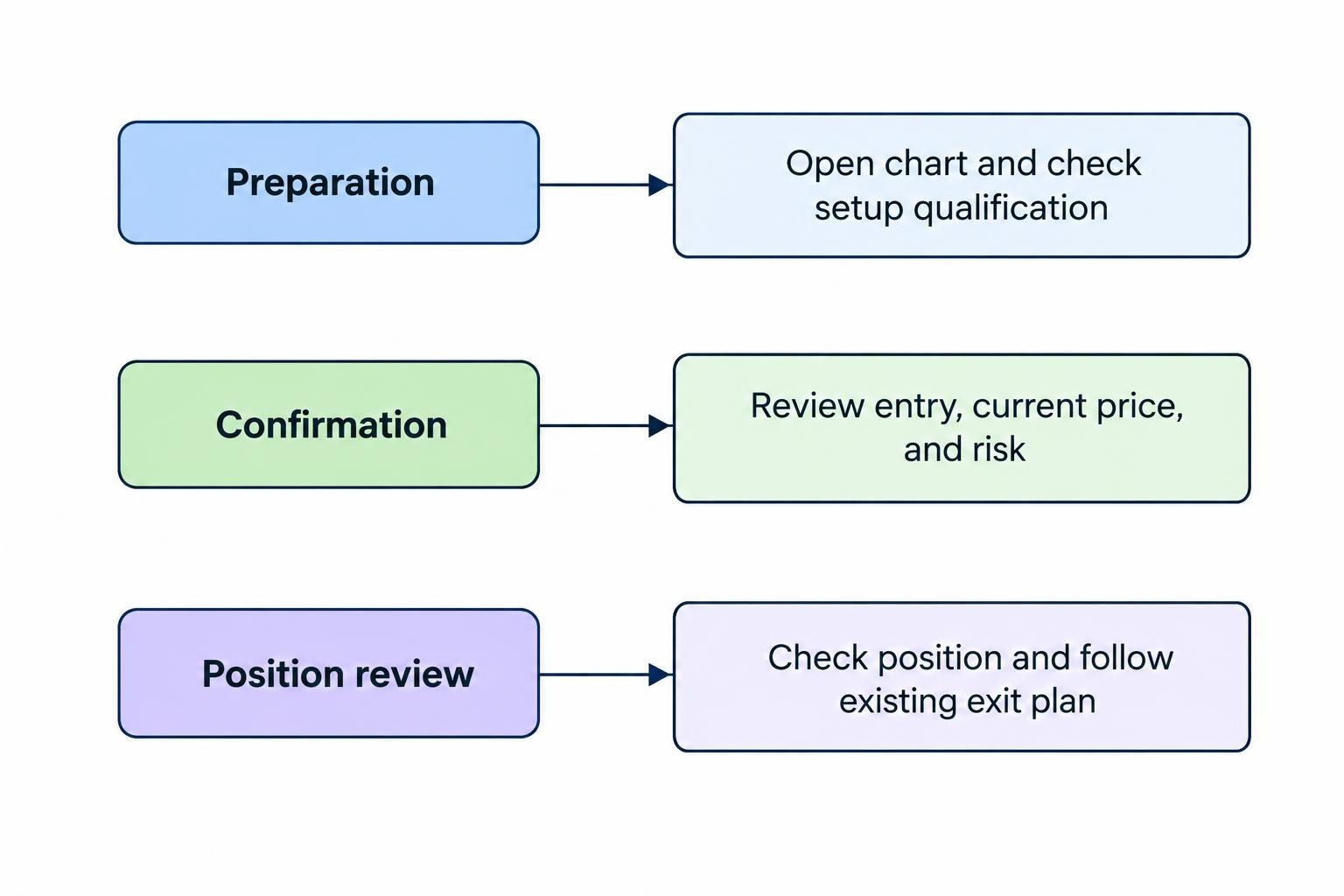
Three alert roles cover many swing trading workflows:
| Alert role | Purpose | Planned response |
|---|---|---|
| Preparation | Flag price approaching an area of interest | Open the chart and check whether the setup still qualifies |
| Confirmation | Flag a defined condition, such as a candle closing above resistance | Review the entry, current price and risk before submitting an order |
| Position review | Flag price nearing a target or another management level | Check the position and follow the existing exit plan |
You do not need all three for every instrument. A watchlist candidate might need only a preparation alert. An open position may need a target review alert but no entry alerts at all. Remove notifications that no longer have a job; your phone already has enough opinions.
Choose Levels From the Trading Plan
Start with the chart timeframe that defines the trade. If your setup depends on daily support, choose the alert around that daily structure rather than a small fluctuation on a five minute chart. Otherwise, the notification can pull you into managing a different trade from the one you planned.
Mark the area that would change your decision. This could be a previous swing high, the edge of a trading range or a pullback zone within an existing trend. Use multiple timeframe analysis for mobile swing traders when you need to separate the broader setup from the chart used to assess entry timing.
Use a Preparation Buffer Where It Helps
An alert does not always belong exactly on the intended entry level. If you need time to review the chart and order ticket, consider placing a preparation alert before price reaches the decision area.
Suppose a hypothetical stock trades at $48.80 and your resistance zone begins at $50. A preparation alert at $49.70 could prompt you to check the setup before the zone is reached. That $0.30 gap is illustrative, not a recommended buffer. Choose the distance around the instrument’s recent movement and the time you need to respond.
Too close, and the warning offers little preparation time. Too far away, and you receive alerts for setups that remain irrelevant. Review the buffer after use rather than applying the same dollar or percentage distance to every market.
Match the Trigger to the Condition You Actually Want
An alert’s condition and its notification frequency are separate decisions. The condition defines what must happen. Frequency controls when or how often you hear about it. Read both fields before saving.
Crossing, Above and Below
Choose the direction deliberately. A crossing above condition suits a planned review of an upward break. A crossing below condition suits a downward move into support or through a review level. A crossing condition without a direction may be suitable when either side of a range matters.
Do not assume “above $50” and “crosses above $50” behave identically. Check whether your app evaluates an existing state, requires a new crossing or repeats while the condition remains true. This matters when you create an alert after price has already passed the threshold.
A Price Touch Is Not a Candle Close
If your trading rule requires a daily close above resistance, a notification during the session is only a preparation prompt. It does not satisfy the closing condition. Decide whether you want early notice, confirmation after the candle closes, or both.
Available settings depend on the alert type. TradingView’s ordinary price alerts offer “Only Once” and “Every Time”; interval dependent alerts, including suitable drawing and indicator alerts, offer bar based frequency choices. Its explanation of alert frequency options distinguishes these settings. Do not assume changing the visible chart to daily makes a basic price alert wait for the daily close.
For a closing condition, verify the alert’s own interval and session settings. A four hour close and a daily close are different tests, even when both alerts refer to the same price.
Choose Repetition and Expiry Deliberately
Use a one time alert when the first occurrence is enough to prompt a review. Choose repetition only when you have a reason to monitor later occurrences. Repeated notifications are not extra confirmation of a trade idea.
Set an expiry or review date around the setup’s useful life. A range breakout idea that you plan to assess this week should not remain active indefinitely without review. After a one time alert fires, decide whether to retire it, replace it or reactivate it.
Configure the Alert on Your Phone
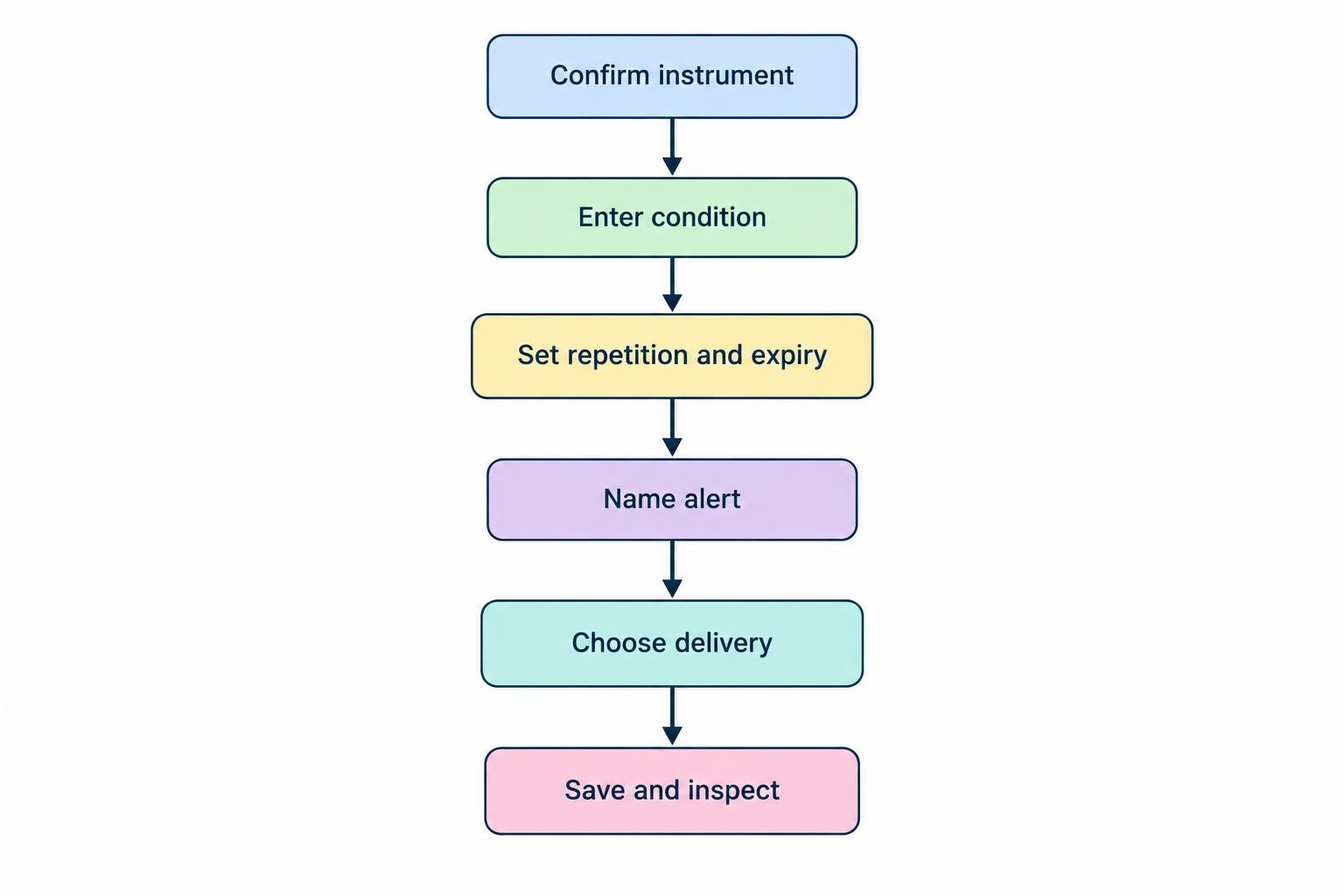
Menu names differ between apps, so treat this as a setup checklist rather than a universal sequence of taps.
- Confirm the instrument. Check the symbol, exchange or venue, currency and product type.
- Enter the condition. Select the direction, price and, where relevant, chart interval.
- Set repetition and expiry. Match them to the decision you intend to make.
- Name the alert. Include enough context to recognise the setup later.
- Choose delivery. Enable the mobile notification route you intend to use.
- Save and inspect. Reopen the saved alert and check every field.
Check the delivery option rather than assuming saving an alert enables phone notifications. TradingView, for example, separates “Notify on App” from email and desktop notification actions in its alert setup instructions. Keep any automated trading or webhook connection outside this workflow unless you have deliberately configured it; a review prompt should remain a review prompt.
Write a Message That Preserves the Plan
A useful name might read: “ABC | Daily resistance $50 | Review only.” If the app allows a longer message, add the next check: “Confirm daily close, reassess entry price, reject if outside planned range.”
Avoid messages such as “BUY NOW.” They replace a decision process with an instruction written before the current market conditions were known. The notification should bring back the reasoning, not just the excitement.
Also inspect the selected quote feed and session coverage. Check whether the symbol uses delayed data, whether extended trading hours are included and which price field triggers the alert. If you use a separate charting app and broker app, confirm you are comparing the same instrument before relying on matching prices.
Make Sure the Notification Can Reach You
Test delivery before depending on alerts for a live workflow. Where a test notification is available, use it. Otherwise, create a temporary alert near the current price of an actively moving instrument, without placing a trade, and remove it afterwards.
Run the test with the screen locked and the app out of view. Compare the trigger record, if available, with the notification received on your phone. This checks that particular configuration; it does not prove every future alert will arrive promptly.
iPhone Delivery Settings
On iPhone, inspect the app under Settings, then Notifications. Enable the notification presentation you need and check whether delivery is immediate or included in Scheduled Summary. Focus settings also need attention because they can delay notifications. Apple’s notification settings guide covers delivery timing and presentation controls.
Repeat the delivery test with the Focus mode you normally use during market hours. Testing with every restriction switched off tells you little about how the phone behaves during your working day.
Android Delivery Settings
On Android, review app notification permissions and the rules for your active mode or Do Not Disturb setting. Supported versions allow you to choose which apps can interrupt, though paths vary by device. Google’s Android interruption controls describe the available app filters and version differences.
Test the configuration you intend to keep. Do not disable every phone restriction simply to make one alert appear. If delivery remains unreliable, resolve the problem before treating that phone as your main monitoring channel.
Keep Alerts Separate From Protective Orders
A price alert asks you to look. It does not, by itself, close a position or reserve an execution price. Treat it as a monitoring aid, not as a substitute for an exit arrangement accepted by your broker.
Protective orders also have conditions and execution risks. For stocks, a stop order becomes a market order when triggered, so the execution price can differ from the stop price. A stop limit order controls the permitted execution price but may remain unfilled. The SEC investor bulletin on stop and stop limit orders sets out that distinction.
Do not build a risk plan around receiving a notification, unlocking the phone and submitting an order before price moves further. Decide your position size and exit approach independently through your mobile trading risk management plan. An alert near an exit level can provide context, but it does not guarantee time to intervene.
Respond Without Chasing the Price
When an alert arrives, check its timestamp before opening an order ticket. Then compare the current market with the condition you planned. Has the level just been reached, or has price already moved well beyond the acceptable entry?
Consider a hypothetical setup with resistance at $50 and a planned entry range of $50.05 to $50.20 after confirmation. Your alert fires, but you see it when the stock is trading at $51.10. The setup has changed. The notification does not make the original entry available again.
Recheck the chart, current spread and distance to the planned exit. If the trade falls outside your rules, skip it or rebuild the plan from the current conditions. Moving the stop farther away to justify a late entry changes the risk; it does not repair the timing.
For open positions, follow the management instruction attached to the alert. A target review notification might prompt a check of an existing exit order, not an automatic decision to cancel it and hold for more.
Maintain a Small, Current Alert List
Review active alerts alongside your watchlist. Delete invalid setups, remove duplicates and check upcoming expiry dates. Keep the alerts that could lead to a real decision during the period you plan to monitor.
Record enough detail to judge usefulness later: why the alert existed, whether it arrived in time and whether it prompted the intended review. “Alert fired” is not a useful performance measure on its own. An alert can work correctly while the trade remains unsuitable.
Before leaving positions unattended, check both accepted orders and active alerts. Neither should be inferred from an old chart marker. Use the separate workflow for managing overnight swing trading positions on mobile when deciding what needs attention outside your normal monitoring hours.
A useful price alert has a defined condition, a tested delivery route and a planned response. Keep those three parts aligned, and your phone becomes a prompt for deliberate review rather than a reason to trade.