Mobile trading order types determine how your app submits a trade, what price conditions apply and how long the instruction remains active. A market order prioritizes execution. A limit order sets a price boundary. A stop order waits for a trigger before becoming an instruction to trade.
Those differences matter more than the size of the Buy or Sell button. Choosing the wrong order can mean paying more than planned, missing an entry or keeping a position open after you expected to exit. This guide uses hypothetical stock trades to explain the mechanics, then covers the checks worth making on a phone. Examples exclude fees and taxes.
Mobile Trading Order Types at a Glance
Start with three questions: do you want to trade now, trade only at an acceptable price, or wait until a price condition occurs? Then decide how long the order should remain active.
| Order type | Main instruction | Main tradeoff |
|---|---|---|
| Market | Trade at the best available price | No fixed execution price |
| Limit | Trade at the limit price or better | May remain unfilled |
| Stop | Become a market order after a trigger | Fill price can differ from the stop |
| Stop-limit | Become a limit order after a trigger | May trigger without executing |
| Trailing stop | Adjust a stop with favorable price movement | A reversal can trigger an exit |
An order type is not a complete trading plan. It describes how an instruction should work, not whether the trade makes sense or how much money to commit.
Market Orders: Trading Without a Fixed Price
A market order instructs the broker to buy or sell at the best available price. It generally executes promptly when the market is open and trading normally, but the price is not guaranteed. The last traded price on your screen is not a promise. These mechanics are covered in the SEC’s overview of market, limit and stop orders.
Suppose a stock last traded at $40.00 and you submit a market order for 25 shares. If those shares fill at $40.08, the purchase costs $1,002 rather than $1,000. The difference between an expected price and the execution price is commonly called slippage.
Use the live bid and ask, rather than the chart alone, when reviewing an order. The ask is the offered selling price relevant to a purchase; the bid is the offered buying price relevant to a sale.
Before selecting Market, ask whether you would still accept the trade if the price moved before execution. If the answer is no, a price restriction deserves consideration. “Trade now” and “trade at this exact price” are different instructions.
Limit Orders: Setting Your Price Boundary
A buy limit sets the highest purchase price you will accept. A sell limit sets the lowest selling price you will accept. Execution can occur at a better price, but the order may never fill.
Suppose a stock is offered at $60.20, but your maximum purchase price is $60.00. A buy limit at $60.00 avoids authorizing a purchase above that level. If the stock keeps rising, you may miss the trade. That is the cost of keeping your price boundary intact, not an app malfunction.
A limit order does not always wait for a future price move. A buy limit entered above the current ask may execute promptly at an available price within that limit. Check the digits before submitting; $60.00 and $66.00 give very different instructions.
When choosing a broker for mobile trading, check the order choices available for the assets and account you intend to use. Make this part of the selection process rather than discovering a missing control during a live trade.
Why a Chart Touch Does Not Prove Your Order Filled
A chart shows price activity, not a receipt for your order. Check the execution record before treating a position as open or closed.
Consider a hypothetical order for 100 shares that fills only 35. You now hold 35 shares, with 65 still unfilled unless they have been canceled or expired. Review both the filled quantity and the remaining quantity before changing the order. The original requested size is not necessarily the size you own.
Stop Orders: A Trigger, Not a Guaranteed Exit Price
A conventional stop order becomes a market order when its stop condition is met. For a long stock position, a sell stop is normally placed below the current market. The stop price activates the instruction; it does not set a guaranteed selling price. Short price swings can also trigger an exit before the stock recovers, a risk addressed in FINRA’s guidance on stop orders during volatile markets.
Suppose you buy 40 shares at $50 and place a sell stop at $47. If the order later executes at $46.70, the loss is $132 before costs, rather than the $120 implied by an exact $47 exit.
This is why a stop should not be treated as a hard ceiling on losses. The execution price still matters.
Stops are not only exit instructions. A buy stop above the current market can be used for an entry that waits for an upward move. For example, with a stock near $30, a trader might choose a $31 buy stop rather than buying immediately. That entry still carries the price uncertainty of a market order after activation.
Stop-Limit Orders: Separating the Trigger from the Price Boundary
A stop-limit order has two prices. The stop activates the order; the limit defines the acceptable execution price. Once triggered, it becomes a limit order rather than a market order. This provides price control but creates the possibility of no execution, as covered in the SEC’s Trading Basics investor bulletin.
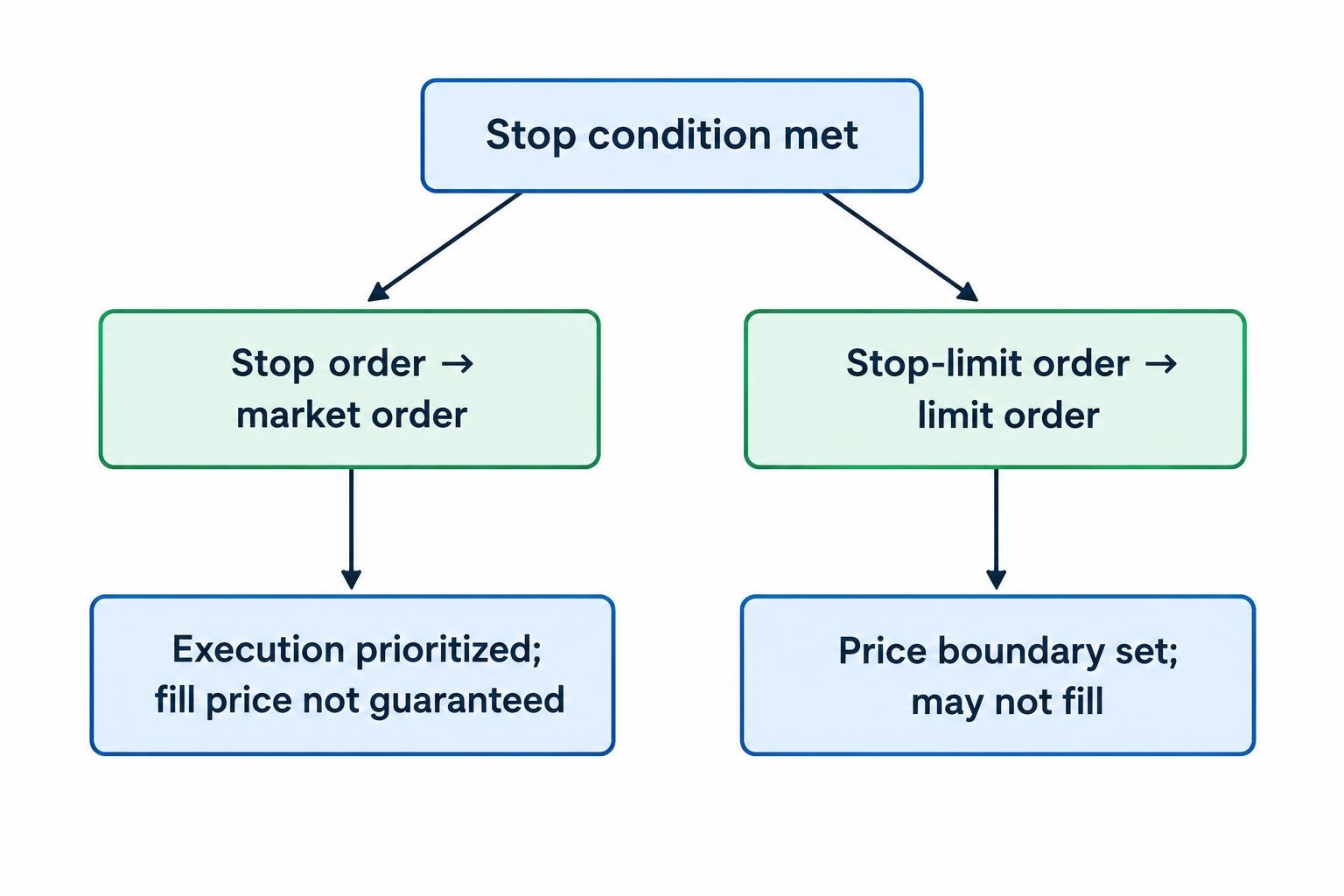
Consider a sell stop-limit with a $95 stop and a $94 limit. After activation, it permits a sale at $94 or higher. If available prices fall straight to $92, it cannot authorize a sale at $92. You could still hold the shares during a further decline.
Leaving a gap between the stop and limit provides a range of acceptable prices. It does not guarantee a buyer within that range.
The choice is about which risk you can accept. A stop-market order accepts price uncertainty after activation. A stop-limit accepts the risk of remaining invested. Neither removes the need for mobile trading risk management, including a position size that remains tolerable if an exit works less neatly than planned.
Trailing Stops: Moving the Trigger with the Market
A trailing stop uses a cash amount or percentage instead of one permanently fixed stop price. For a sell trailing stop, the trigger rises with favorable price movement but does not move back down when the price falls. Check whether the selected version becomes a market or limit order after activation; both forms are covered in the SEC’s bulletin on stop-limit and trailing stop orders.
Suppose you activate a $3 sell trail when the reference price is $100. The initial trigger is $97. If that reference rises to $110, the trigger rises to $107. A fall to $108 leaves the trigger at $107.
A percentage trail behaves differently. A 3% distance is $3 at $100 but $3.30 at $110. Do not assume a percentage and cash trail remain interchangeable as the price changes.
Choose the distance before submitting, rather than selecting the smallest available setting. A narrow trail can conflict with a plan that expects ordinary price fluctuations. Automation follows the instruction you enter, not the intention you had in mind.
Take-Profit, Bracket and OCO Orders
For a long stock position, a sell limit above the entry can serve as a profit target. An app’s “take-profit” label should prompt a practical check: what instruction sits behind it, what activates it and what happens after a partial fill?
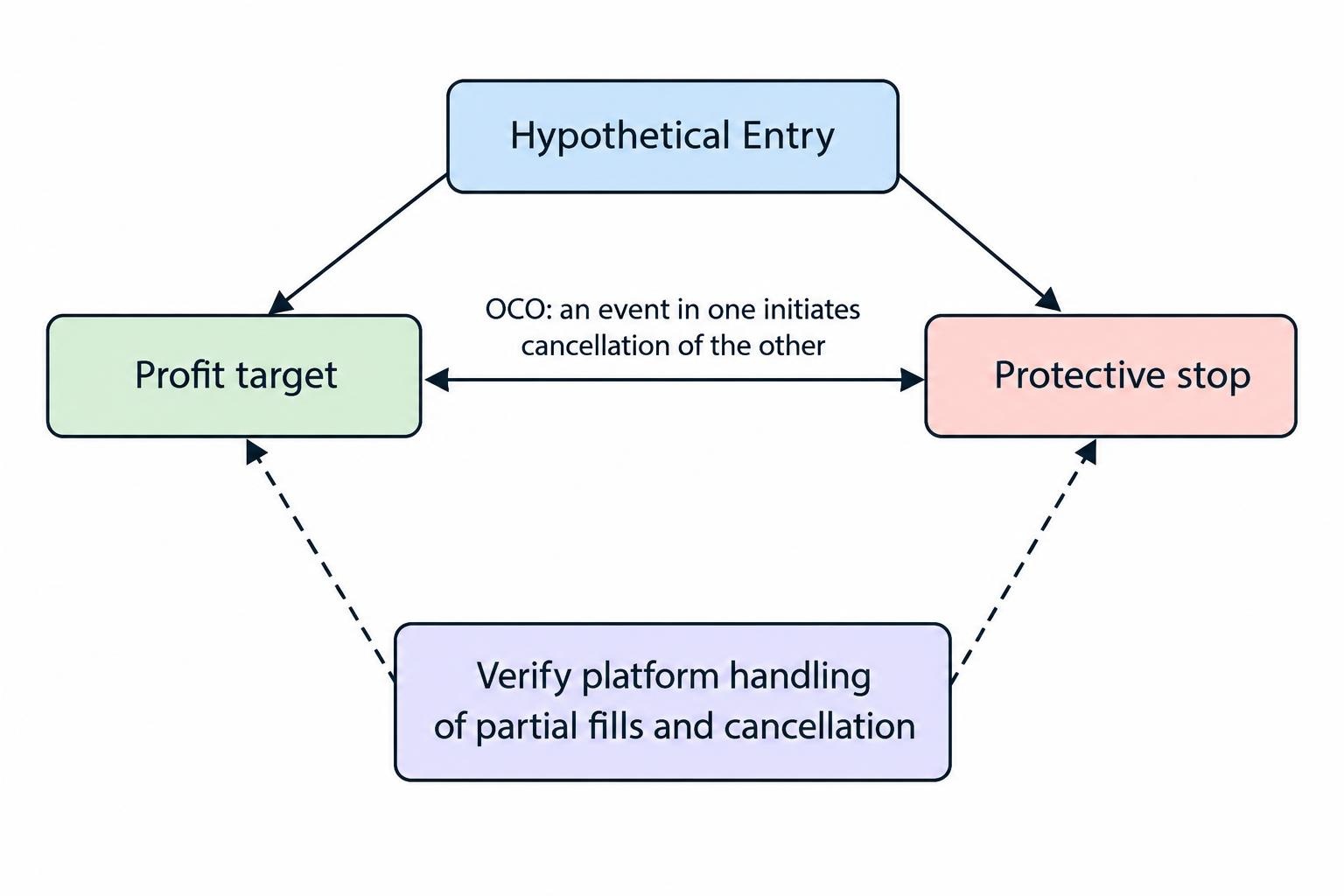
Conditional orders can connect instructions. One cancels the other, or OCO, links two orders so an event in one initiates cancellation of the other. These arrangements, including their use in retail forex and CFD platforms, appear in CME Group’s discussion of conditional order structures.
A bracket typically groups an entry with a profit target and a protective exit. For a hypothetical purchase at $100, the plan might use a $108 target and a $96 stop.
Before submitting that structure, check when the exit orders activate and what happens if the entry fills only partly. Also check whether cancellation follows a trigger, partial execution or full execution. Do not assume two separately entered sell orders are linked just because they appear beside the same position.
If you close a position manually, inspect any remaining working orders. The position screen and order screen deserve separate checks.
Time in Force: How Long Your Instruction Lasts
Time in force is a separate choice from order type. A limit order defines an acceptable price; its duration determines how long that instruction remains available for execution. FINRA’s explanation of order instructions distinguishes the common duration and execution conditions.
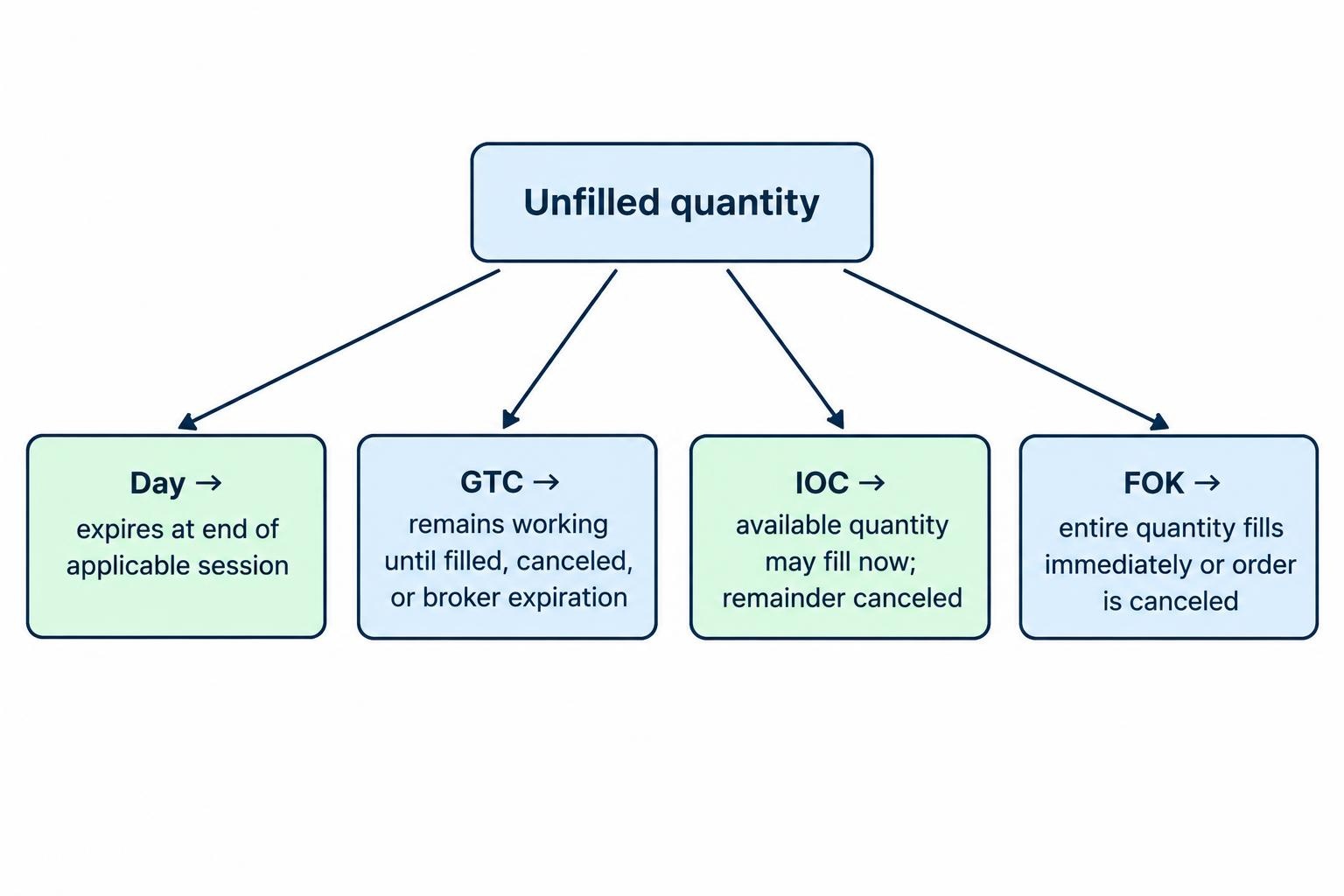
- Day: The unfilled order expires at the end of its applicable trading day or session.
- Good till canceled, or GTC: The order remains working until execution, cancellation or an applicable broker expiration.
- Immediate or cancel, or IOC: Execute what is available immediately and cancel the rest.
- Fill or kill, or FOK: Execute the entire quantity immediately or cancel it.
For an illustrative 100-share order with only 30 shares immediately available at an acceptable price, IOC could fill 30 and cancel 70. FOK would require the full 100 immediately or cancel the order.
Check session eligibility separately. Before relying on an order outside regular hours, confirm which sessions it covers, whether its trigger operates then and whether an unfilled instruction carries forward. Do not read “GTC” as “active during every available trading session.”
Submitting, Changing and Canceling Orders on Mobile
Use the review screen as a final inspection, not a speed bump. Confirm the account, instrument, buy or sell direction, quantity, order type, prices, duration and session. Where a product uses contracts or lots, verify the unit before entering a number. A correct price attached to the wrong quantity is still a wrong order.
After submission, distinguish an acknowledgment from an execution. Find the order record and check the filled quantity, average execution price and any remainder.
If the screen freezes, do not submit again simply because the first attempt looks unanswered. The same caution applies to cancellation: a receipt for a cancellation request does not establish that the original trade was canceled. The SEC’s online trading guidance on duplicate orders and cancellations addresses both risks.
For a partially filled order, reconcile the completed quantity before replacing the remainder. If you requested 50 shares and 20 already executed, entering another order for 50 could produce a larger position than intended.
Keep a separate response plan for a trading app disconnecting with open positions. When status is uncertain, the immediate task is to establish what the broker accepted and executed, not to guess from an unresponsive button.
Match the Order to the Decision
Choose the instruction in plain English before opening the ticket: trade now without a fixed price, trade only within a price boundary, or wait for a trigger. Then identify the failure you need to plan for: an unexpected price, no fill, a partial fill or an order that remains active longer than intended.
Practice those choices in a demo account where available, including changing and canceling orders. Use that practice to learn the controls, not to assume live execution will match it. On mobile, the useful habit is simple: review before submitting and verify afterward.