Mobile trading apps put account monitoring, charts and order entry on a phone or tablet. The useful question is not which device has the fastest processor. It is whether the app and device let you check information, enter an order accurately and confirm what happened without fighting the interface.
A sensible setup starts with the trading tasks you need to complete. Checking a portfolio once a day asks less of a device than comparing charts, managing several positions and changing orders during a busy session. Choose around those tasks, rather than buying hardware first and hoping the software fits.
Separate the Trading App from the Trading Account
The app is your interface, not the whole trading service. Distinguish between the software developer, the firm holding your account and any separate service supplying charts or market data. A polished screen tells you little about who handles your money.
Saving and investing apps can provide different services, including saving money, investment advice and securities trading. The SEC’s overview of saving and investing apps also identifies background and registration checks as part of evaluating the firms behind them. Do those checks separately from assessing whether you like the interface.
Keep the hardware decision separate too. Replacing a phone will not fix missing order controls, unclear account information or a service outage. Before spending anything, write down what your present setup cannot do and establish whether the cause is the device, app, account permissions or connection.
Choose the Right Type of Mobile Trading Software
Account Provider Apps
Start by testing the app supplied for your trading account. Your first checks should cover positions, pending orders, available funds, transaction history and access to support. These are more useful than a crowded home screen full of market movers.
Check the mobile version directly rather than assuming it matches the desktop service. Can you amend an order, download a statement and find a rejected transaction? Can you distinguish an open position from an order that has not filled? For the separate account selection process, use the guide to choosing a broker for mobile trading.
Third Party Trading Platforms
If your account supports a separate trading platform, verify the exact connection before installing it. Confirm the account type, login method and available instruments. A platform name alone does not establish which features your account will receive.
Test each feature you intend to use on the mobile edition. Do not assume a desktop indicator, automated strategy or saved workspace will run on a phone. Ask whether the feature operates on the device, on a remote server or only while the desktop software remains open. That distinction matters more than matching icons.
Charting Apps and Mobile Browsers
You can use one app for research and another for execution, but make the handoff deliberate. Before entering a trade, compare the symbol, exchange or contract, currency, trading session and quote time. Similar names do not always mean you are looking at the same instrument.
A mobile browser is worth testing as another access route when the provider supports it. Check login, page layout and order management in advance. Treat it as an alternative interface, not an independent backup: an app and browser accessing the same account service may both be affected by the same outage.
What a Trading App Should Make Easy
Evaluate an app by completing ordinary tasks, not by counting features. Start with a short watchlist, open an instrument, inspect its quote and prepare an order. Then find where you would amend or cancel that order and review the account activity afterwards.
| Area | What to Check | Reason to Pause |
|---|---|---|
| Instrument details | Full name, symbol, currency and contract or exchange details where relevant | You cannot confidently identify what you are trading |
| Market data | Quote time, trading session and whether data is live or delayed | You cannot establish how current the displayed price is |
| Order ticket | Direction, quantity, order type, price and duration | Important fields disappear behind the keyboard |
| Account information | Positions, pending orders, funds and margin where applicable | You cannot distinguish money available from money already committed |
| Order history | Clear status, timestamps and rejection messages | You cannot tell whether an instruction was accepted or filled |
| Support | Verified contact details and alternative access instructions | The help route is difficult to find before you need it |
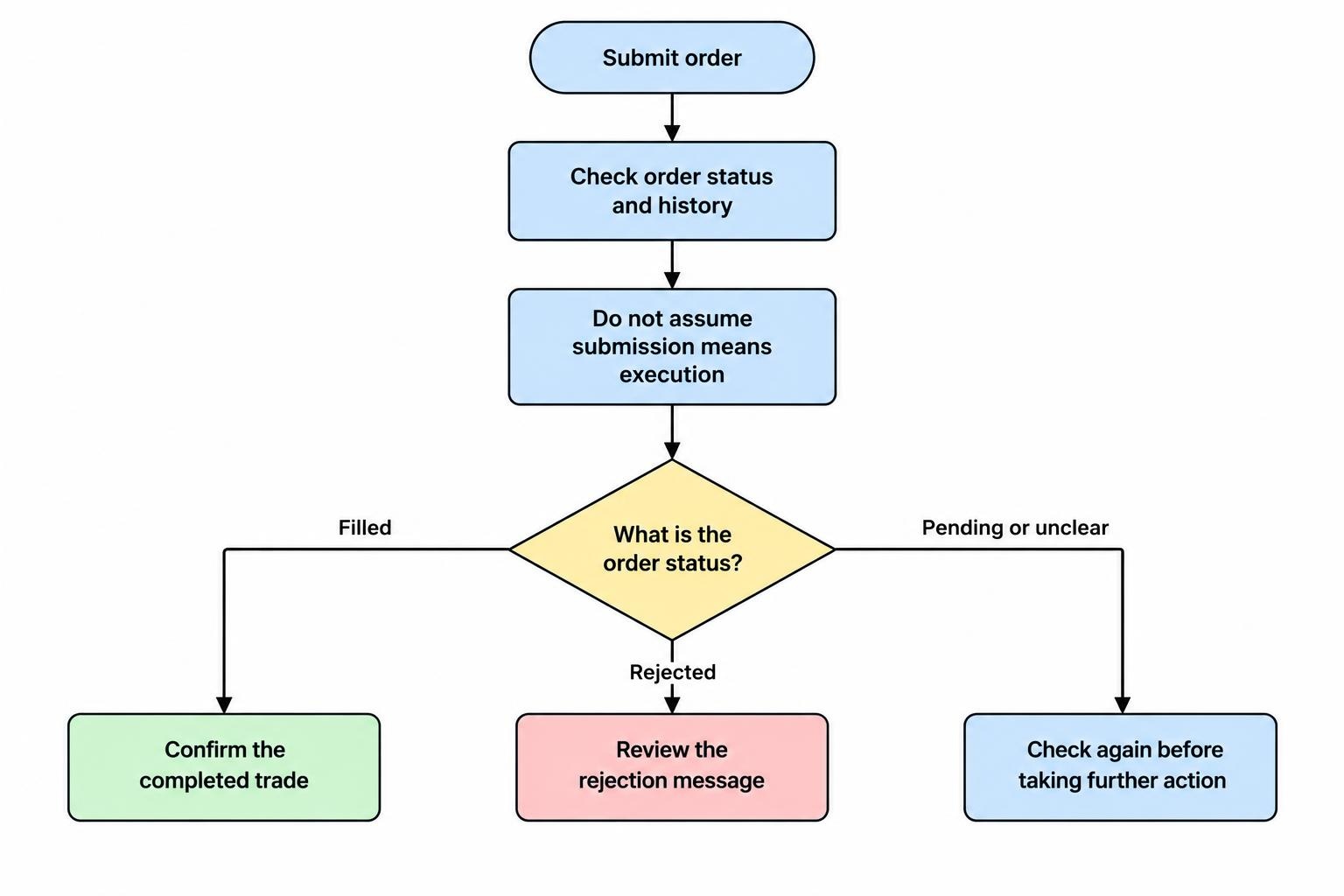
Give order status particular attention. An instruction being submitted is not the same as a completed trade. The SEC’s online investing guidance warns that resubmitting an order without checking its execution can create a duplicate trade. It also stresses confirming that a cancellation worked before placing another order.
Make confirmation screens part of your routine rather than treating them as an inconvenience. Speed is useful only after accuracy. A large buy button is not much of a feature if the quantity field beside it is hard to read.
Choosing a Phone or Tablet for Trading
Start with Compatibility and Support
Before buying a device, check the intended app’s current operating system requirement and device compatibility. Include any authentication app you need to access the account. Leave room in your budget for continued software support rather than choosing solely on the lowest purchase price.
For Apple devices, app listings include details such as the developer, file size, device compatibility, supported languages, accessibility features and privacy information. Use those details during your checks; Apple’s guide to app information in the App Store identifies what is available before downloading.
Avoid selecting a device that only just meets your present needs without considering its remaining support period. Check the manufacturer’s update policy for that model and region. An older phone may be adequate for your tasks, but a cheap purchase becomes less attractive if you soon need to replace it.
Prioritize Readability over Display Specifications
Test the screen with an actual order ticket, not a promotional screenshot. Set the text size you normally use, open the keyboard and check whether you can still see the instrument, direction, quantity and price. If you must repeatedly hide the keyboard to inspect the order, try another layout or device.
Check charts in both portrait and landscape orientation where supported. You should be able to read the price scale, inspect a candle and change timeframes without accidentally opening an order ticket. Keep only the chart tools that serve your process; a phone screen is not obliged to host every indicator you have ever encountered.
For a fuller comparison of screen space, portability and working positions, see trading on a tablet versus a smartphone. Test the app’s tablet layout rather than assuming it offers more than an enlarged phone view.
Check Performance Under Your Normal Workload
Use a practical test instead of a universal memory or processor target. Open your usual watchlist and chart layout, switch to another app, then return. Check whether the trading app remains responsive and whether you can quickly establish that its data has refreshed.
Include the conditions in which you expect to trade. Test at your normal screen brightness, with the case fitted and your usual accessories connected. Consider battery condition, charging access and storage space alongside processing performance. Buy for a repeatable working session, not an impressive specification sheet.
Android or iPhone: Compare the App You Will Use
Choose between Android and iPhone by comparing the actual trading workflow available to you. Do not assume the same provider offers identical controls or releases features at the same time on both platforms. Verify the current versions, especially if an order type, chart tool or accessibility setting is necessary for your process.
Keep the comparison practical. Can you sign in reliably, read the account screen, adjust text size and enter an order without awkward gestures? Can you manage authentication without losing track of the task? Familiar controls deserve weight because changing phones also means learning a different daily routine.
On Android, review settings for apps used infrequently. Android can revoke permissions, stop background activity and stop notifications for unused apps, as covered in Google’s unused app management guidance. Check this when returning to a trading app after a long break rather than assuming its previous notification settings still apply.
Plan for Connections, Alerts and Battery Use
Test the complete setup on the networks you expect to use. Open a quote, refresh account information and check how the app behaves after switching between Wi-Fi and cellular data. Conduct connection experiments in a demo environment without live orders at risk.
Judge recovery as well as initial speed. When access returns, can you identify the latest quote, refresh positions and inspect order history? A responsive chart alone is not enough. If the app repeatedly stalls or shows uncertain account information, work through trading app connection troubleshooting before relying on it.
Test alerts with the screen locked and under the notification settings you normally use. Treat price notifications as prompts to review the account, not as proof that an order has executed. Keep promotional notifications separate from those you need for account activity and security.
Set a practical battery threshold below which you stop opening new trades from that device. Carry a suitable charger or power bank when away from dependable power, and keep enough data allowance for your intended session. The detailed settings belong in the guide to managing battery life and mobile data while trading.
Build Security into the Device Setup
Use your own protected device, a strong account password and the strongest suitable authentication method the provider offers. Install security updates and verify unexpected messages through a known contact route. These precautions align with FINRA’s account takeover prevention guidance, which also warns about fake login pages and stolen authentication information.
Before installing an app, compare its developer details with the provider’s verified download instructions. Do not use an installation file sent by a stranger or someone promising to manage trades for you. Establish a recovery method before changing phones, and avoid storing your only recovery information on the device you might lose.
Keep this setup work separate from chart customization. Authentication, permissions, device access and recovery deserve their own review. The mobile trading app security guide covers that process without burying it among display preferences.
Run a Rehearsal Before Relying on the Setup
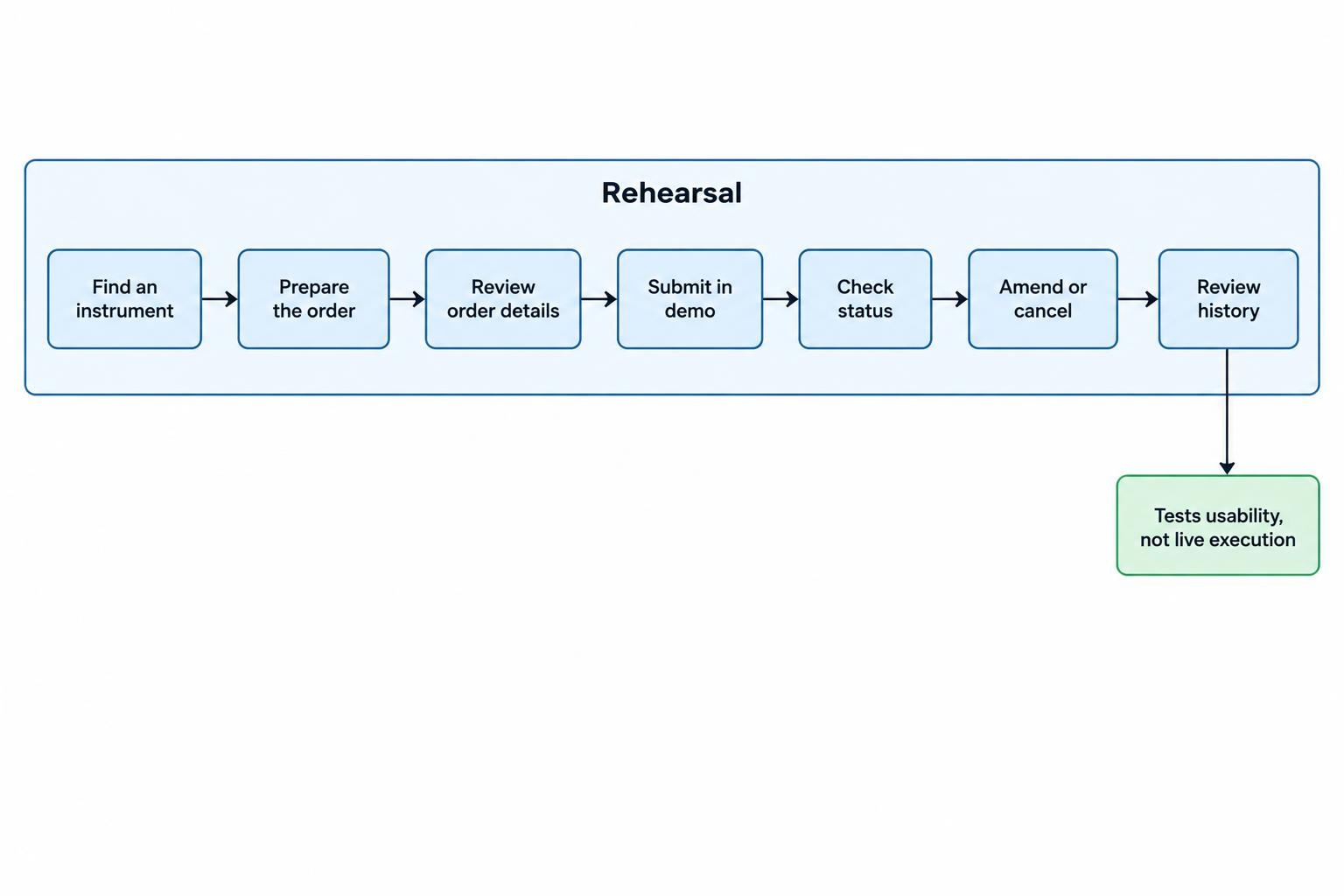
Use a demo account, where available, to rehearse the full sequence: find an instrument, prepare an order, review its details, submit it, inspect its status, amend or cancel it and locate the history. Include signing out and back in. Test the boring parts; those are often the ones you need under pressure.
A demo rehearsal can assess usability, but it does not establish how live orders will execute. Keep those judgments separate. Record any controls you could not find, ambiguous labels or steps that required guesswork, then resolve them before relying on the app for live decisions.
The right mobile trading setup is one you can use accurately and maintain without unnecessary expense. Keep a supported device, a readable order ticket, a tested access route and clear confirmation habits. Upgrade when a measured problem warrants it—not because another camera lens has appeared on the back of a phone.