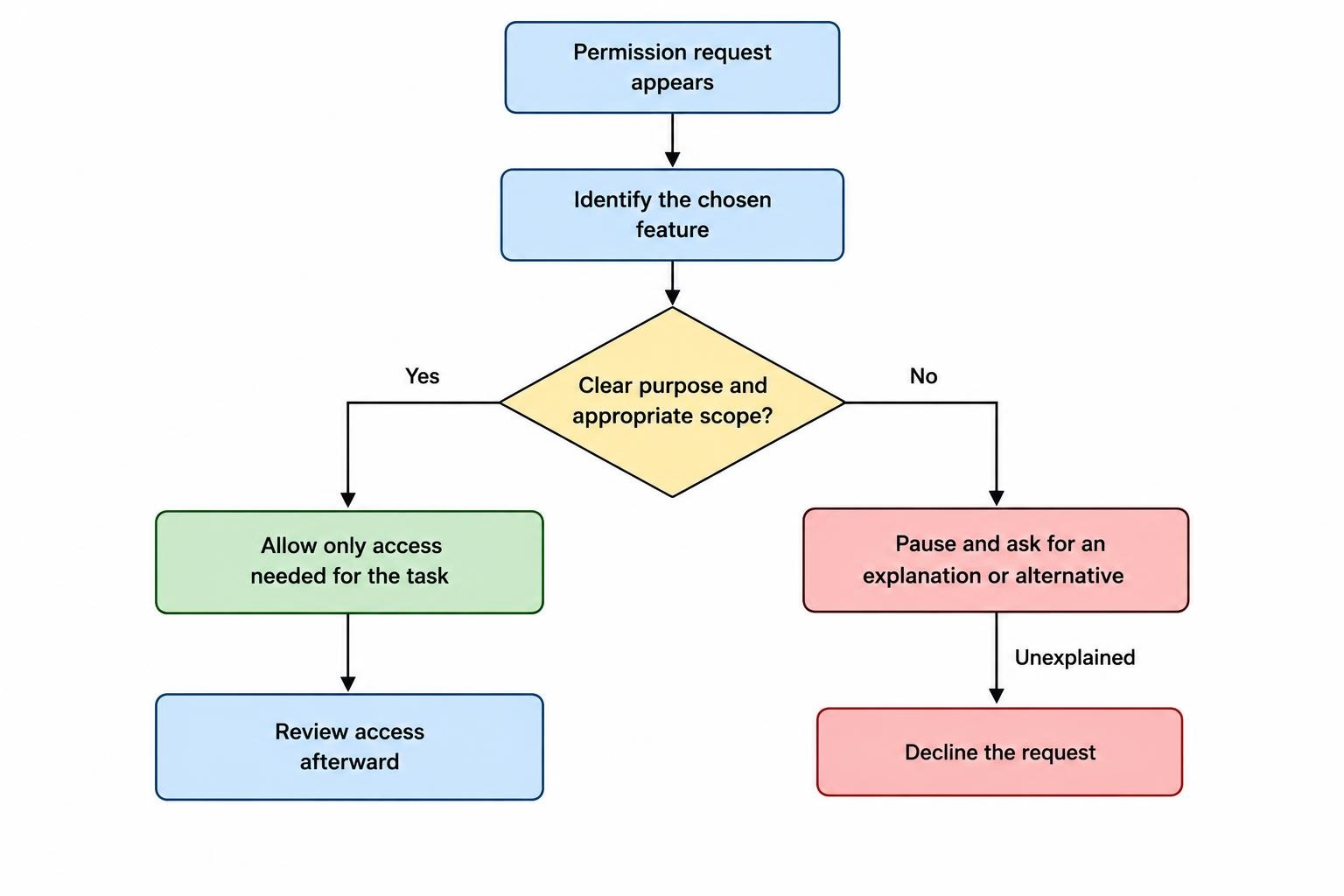
Android trading app permissions should match the task you are performing. A camera request during identity verification may be reasonable. A request to read your contacts before opening a watchlist deserves a harder look. The useful question is not whether a trading app asks for permissions, but whether each request has a clear purpose and a sensible scope.
Privacy also extends beyond permission prompts. Review what you submit during registration, what appears in notifications, and what the provider says about collecting and sharing account information. Approving fewer permissions is a useful precaution, not a complete privacy assessment.
This guide focuses on those decisions rather than broker selection or account security more broadly. For the wider setup, see our Android trading guide.
Which Permissions Should a Trading App Have?
There is no universal permission list that every legitimate trading app must follow. Judge the request against the feature you chose to use. Separate access needed for that task from access requested for convenience, promotion, or a feature you do not want.
Use the following as a review framework, not a technical certification of an app:
| Permission request | Reason worth considering | Practical default |
|---|---|---|
| Camera | You started a document scan or identity check. | Approve for the task, then review access afterward. |
| Photos or files | You chose to upload a document or save a statement. | Prefer selecting the required item over granting broad access. |
| Notifications | You want account, order, or price alerts. | Keep useful alerts and review their visibility. |
| Location | The provider gives a clear explanation connected to the service. | Question the accuracy and duration requested. |
| Microphone | You deliberately started an audio or video support session. | Decline when there is no relevant feature in use. |
| Contacts, SMS, or call history | The app identifies a feature you actually need. | Decline unexplained requests and ask about alternatives. |
A plausible purpose is only the start. Ask why the app needs that much access, at that moment. “To improve your experience” is not a useful answer to a request involving your address book.
How to Review Android Trading App Permissions
Open Settings > Apps > your trading app > Permissions. Select a permission to change its access. You can also review apps by permission category through Permission manager. Depending on the permission and device, choices may include access while using the app, asking each time, or denying access. Menu labels can differ, so use Google’s Android permission settings instructions if your phone shows a different route.
Make changes when you have time to check the result, rather than immediately before placing an order. Review one setting at a time and test the feature involved. If you decline camera access, test the document submission route, not whether the price chart still loads.
Keep a short note of any permission the app insists on having. Record the explanation and whether support offered another method. This makes it easier to distinguish a requirement you have already assessed from a new request after an update.
Avoid the two extremes: approving everything to get through setup, or denying everything and assuming the app will behave normally. The aim is the smallest amount of access that supports the functions you intend to use.
Identity Checks, Camera Access, and Document Uploads
Treat identity verification as a separate task from routine trading. Before submitting a document, confirm that you are inside the intended app and that the request relates to your account. Do not follow a document upload link simply because someone in a chat claims to represent support.
Where the app offers alternatives, prefer a method that exposes only the material required. Android supports a photo picker that lets an app receive selected images without broad photo permissions, and a document selection framework for choosing files. It also provides methods for retrieving verification codes without unrestricted SMS reading. These are established alternatives in Android’s guidance on reducing permission requests; whether your trading app uses them depends on its implementation.
Suppose you need to upload proof of address. Select the requested document rather than approving access to an entire collection just to avoid another tap. Check the selected file before sending it, especially if similarly named statements sit next to each other.
Do not obscure or alter required verification details unless the provider confirms that it accepts the change. Instead, ask which document types and fields it needs. Once verification finishes, review whether the app still needs the permission you granted.
If the provider demands broader access, ask for the reason and an approved alternative. A clear answer may resolve the concern. Repeated pressure without an explanation should stop the process.
Separate Useful Alerts from Lock Screen Exposure
Choose which trading notifications you want before deciding how openly they should appear. Account security messages and order updates deserve different treatment from promotional campaigns. A price alert you requested is not the same thing as an invitation to trade more often.
Also consider what someone standing beside you could see. You may want an alert to arrive without displaying its contents on a locked phone. On supported Galaxy devices, notification settings let you hide lock screen content and adjust individual app notifications. The available controls vary by model and software version; Samsung’s notification privacy instructions cover those options.
A practical setup is to retain alerts you rely on, suppress unwanted marketing where the app allows it, and hide sensitive previews. Test the result with a nonurgent notification before depending on the arrangement during a trading session.
Do not assume that silence means there is nothing to check. Open the account to confirm an order’s status rather than treating a missing notification as proof that it failed. Keep that habit separate from privacy settings: hiding a preview and troubleshooting delivery are different jobs.
Read Google Play’s Data Safety Section Critically
Permission settings describe access on the phone. Google Play’s Data safety section describes the developer’s declared data handling practices. Review both, but do not expect them to be identical.
The declaration can cover collection, sharing, security practices, and deletion options across an app’s versions. Practices may vary with use and region. Some transfers, including certain processing by service providers, do not count as “sharing” under the section’s definitions. A short label therefore needs context. Google Play’s explanation of Data safety disclosures sets out those distinctions.
For a trading app, read the declaration alongside its privacy policy and ask practical questions:
- Which account and financial details does the provider collect?
- Does it distinguish service delivery and fraud prevention from advertising?
- Which outside businesses process identity documents or account information?
- What choices exist for optional analytics and marketing?
- What happens to submitted information when you stop using the service?
Look for answers you can act on. A policy should help you decide whether to submit a document, accept an optional feature, or contact the privacy team. Do not treat a reassuring phrase such as “secure processing” as an answer to who receives the information or why.
If you cannot reconcile the app’s request with its explanation, pause registration. It is easier to ask a question before uploading a passport than after.
Be More Cautious with Accessibility Access
A request to enable an accessibility service deserves a separate review from a routine camera prompt. Accessibility services can inspect screen content and interact with apps on a user’s behalf. These capabilities support legitimate assistive tools, including screen readers and voice controls, as documented in Android’s accessibility service documentation.
The distinction matters: using a trusted accessibility tool to operate a trading app is not the same as granting the trading app its own accessibility service access.
Do not enable this access simply because a support agent says it will speed up verification, fix a deposit, or activate an account. Ask what function requires it and why an ordinary account process cannot complete without it. Verify the answer through a support channel you reached independently.
Apply the same pause to requests to install another app or change protective device settings. Treat these as new security decisions, not routine steps in an existing conversation. An urgent deadline supplied by the person requesting access is no reason to skip the review.
If the app’s identity or installation route is uncertain, use our guide to recognising fake trading apps before submitting documents or adding funds.
Keep Privacy Choices Separate from Trading Reliability
Review settings with a clear purpose. If your aim is to stop an unnecessary permission, change that permission. If your aim is to hide an account notification, adjust its visibility. Avoid changing unrelated controls in the same sitting, because it becomes harder to work out which change caused a problem.
Build a simple test around each adjustment. After changing alert preferences, check a harmless alert. After changing file access, test a statement download when you do not urgently need it. Do not place a live trade just to find out whether a privacy setting affected an app feature.
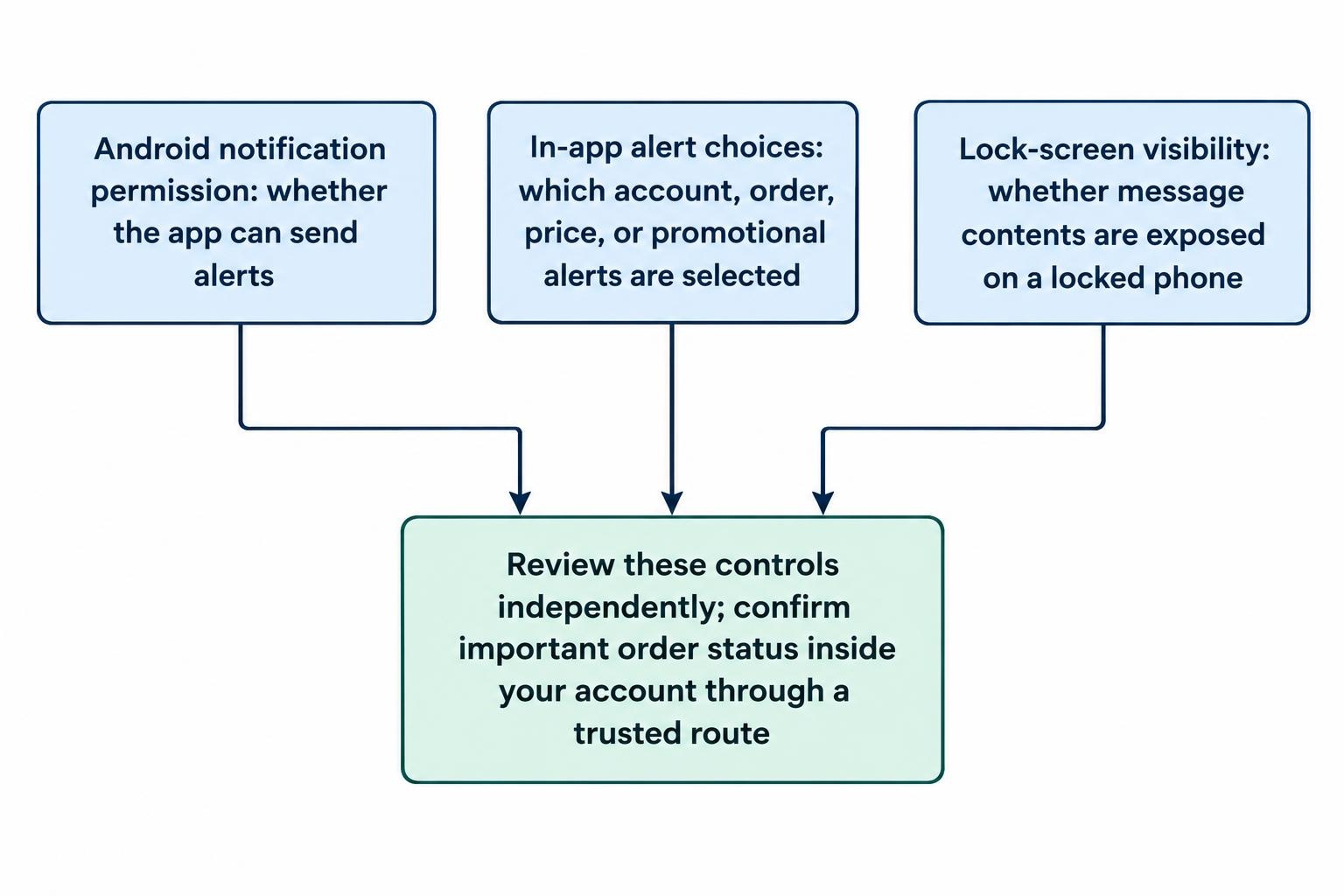
Take particular care if you are troubleshooting notifications. Preserve the distinction between permission to send alerts, the alerts selected within the app, and what appears on the locked screen. For delivery problems, follow the separate guide to fixing delayed trading notifications on Android rather than granting unrelated access as a general repair attempt.
Never use a notification as your only account record. When a trade or withdrawal matters, check its status inside the account through a trusted route.
A Practical Privacy Review Before You Trade
Before funding an account, review the app’s permissions and its explanation of data use. Approve access in response to a feature you chose, not simply because a prompt appeared. Ask about broad requests, especially where selecting one file or completing one verification step should be enough.
Repeat the review after an unexpected permission request, a major change in how you use the app, or a change of device. Do not automatically approve a new request just because you accepted an earlier one. Equally, do not assume a new request proves wrongdoing; assess its purpose.
If you stop using the service, ask how account closure and data deletion work, including whether any records will remain and why. Do not treat removing the app as your account closure instruction. Resolve outstanding account matters through the provider’s documented process.
The working rule is straightforward: each permission needs a reason, each sensitive upload needs a verified destination, and each optional data use deserves a genuine choice. A trading app needs enough access to perform its job. It does not need a blank cheque for the rest of your phone.