To fix delayed trading notifications on Android, check three things first: whether the alert was created inside the trading app, whether Android allows that app to notify you, and whether battery or data restrictions affect it in the background. Change one setting at a time, then test with the screen locked.
Do not place a live trade just to test a notification. Use an app’s test alert, a demo account, or a harmless price alert instead. While troubleshooting, check open positions directly rather than waiting for a push message. The aim is to make alerts more dependable, not to turn your phone into the only line of defence.
Identify where the notification is getting delayed
A late alert does not automatically mean Android caused the delay. Separate the event itself, the app’s record of that event, and the notification you see on your phone.
For a price alert, record the instrument, trigger condition, expected trigger time and arrival time. For an order notification, compare it with the order history rather than assuming that the notification timestamp is the execution time. Check time zones before comparing records.
| What you observe | What to investigate next |
|---|---|
| The event is absent from the app’s own history | Confirm the alert condition, account and instrument before changing Android settings. |
| The app records the event, but no notification appears | Check notification permissions, categories and background restrictions. |
| Alerts appear together after you unlock the phone | Test battery and background activity settings. |
| The notification is present, but you heard nothing | Check sound, vibration and interruption settings. |
| Delays happen on one network only | Compare Wi-Fi and mobile data under the same test conditions. |
Treat these as starting points, not proof of a fault. A useful report says “three alerts arrived after unlocking on mobile data,” rather than “notifications are broken.” That distinction makes both troubleshooting and support requests much more productive.
Check the trading app’s own alert settings
Start inside the app. Confirm that push notifications are enabled for the alert type you need. Look separately for price alerts, order updates, account messages and security notices; do not assume that enabling one enables every other type.
Check the alert’s details too. Does it apply to the correct instrument and account? Is the condition based on a price crossing a level, reaching it, or remaining above it? Has a previous trigger completed a one-time alert? Inspect the settings available in your app rather than relying on how another platform behaves.
If email notifications are available, compare one with the push notification during your test. Treat this as an extra observation, not a precise measurement of delivery speed: the two messages may follow different processes.
For a broader setup review, use the Android trading guide. Keep this troubleshooting session focused on a single app and alert type until you can reproduce the problem.
Enable Android notifications and check how they appear
Open Settings > Notifications > App notifications, select the trading app and enable its notifications. Menu names vary by device. If the app offers notification categories, inspect the category relevant to your missing alert, not just the main switch.
Check whether that category is set to alert or silent. A silent notification can appear in the notification shade without making a sound. Review lock screen visibility too, but avoid displaying sensitive account details simply to make alerts more noticeable.
Where available, turn on notification history before your next test. It can help you find dismissed or snoozed messages. Google’s Android notification controls cover app categories, silent alerts, lock screen settings and history.
Also inspect Do Not Disturb, bedtime schedules and any custom interruption mode. Temporarily turn these off during a controlled test, then restore them. If the alert is visible but inaudible, investigate its presentation before changing network settings. A notification you did not hear is a different problem from one that arrived late.
Review battery restrictions for the trading app
Open the trading app’s information page in Android Settings and look for App battery usage, Battery or Allow background usage. Check whether background activity is restricted. If your device offers an unrestricted option, test it for the trading app rather than applying it to every app.
On Pixel phones, Adaptive Battery can delay notifications, and allowing an app to run more in the background can increase battery consumption. Google’s Pixel battery optimization guidance describes that trade-off and the per-app background usage controls.
For the first comparison, temporarily turn off Battery Saver or the manufacturer’s power saving mode. Keep the network, alert type and other settings unchanged. Record the result before making another adjustment.
If removing a restriction does not improve delivery, restore the previous setting. There is little value in accepting extra battery drain for a change that did nothing. Avoid starting with a blanket instruction to disable every power saving feature on the phone.
Why alerts may arrive after unlocking
Android’s Doze mode defers background network and processing activity when an unplugged phone remains idle with its screen off. Some work resumes during maintenance windows or when the device wakes. This makes screen-off testing useful when alerts appear in a batch after unlocking.
Apps can use high priority cloud messages for time-sensitive, visible notifications. That is an app developer decision, not the same setting as choosing a louder notification sound. The Android documentation on Doze and App Standby describes both background restrictions and messaging options.
The practical implication is that changing phone settings may help, but it cannot repair every notification implementation. If your tests consistently fail only after the phone has been idle, include that pattern in your support request.
On Samsung Galaxy, check sleeping apps
Samsung Galaxy owners should also inspect Background usage limits. One documented route is Settings > Battery and device care > Battery > Background usage limits, although the path can differ with the software version.
Remove the trading app from Sleeping apps and Deep sleeping apps if it appears there. Consider adding it to Never sleeping apps for a controlled test. Samsung’s sleeping app settings guidance states that deep sleeping apps do not run in the background and work only when opened.
After the change, launch the trading app, confirm its alert settings, then lock the screen and repeat your test. Keep a note of which list you changed so you can reverse the adjustment if it offers no benefit.
Check background data and Data Saver
Find the app’s data usage settings and check whether background mobile data is allowed. If Data Saver is enabled, look for an option such as Unrestricted data and test an exception for the trading app.
Data Saver blocks background data usage on metered networks unless an app has an exception. The Android Data Saver documentation distinguishes that exception from ordinary foreground access.
Do not confuse unrestricted data with unrestricted battery usage. They address different restrictions. Changing one does not tell you whether the other is correctly configured, and neither proves that the trading service sent the alert promptly.
You should not need to grant unrelated permissions, such as contacts or microphone access, to troubleshoot a price notification. Review each permission request on its own merits rather than approving everything in the hope that something works.
Compare Wi-Fi and mobile data
Repeat the same harmless alert test once on trusted Wi-Fi and once on mobile data. Keep battery settings and the screen-off period as consistent as practical. Testing a different alert under entirely different conditions makes the result harder to interpret.
If only one connection produces delays, investigate that connection before reinstalling the trading app. Check for an unfinished Wi-Fi sign-in page and confirm that the connection remains usable. If you use a VPN or network filtering tool, consider a brief comparison without it on a trusted network, provided your security policy permits this.
If charts, account data and order status also fail to refresh, follow the separate guide to troubleshooting trading app connection problems. That is a wider connection issue, not just a notification problem.
Test with the screen locked, not just with the app open
A notification that works while you hold the phone is not enough to validate delivery while the device sits untouched. Test the conditions in which you actually missed the alert.
- Establish a baseline. Use the app’s test notification or a demo price alert, if available, while the app is open.
- Move to the background. Return to the home screen and repeat the test without changing anything else.
- Lock the screen. Leave the phone unplugged and untouched, then repeat after an idle period.
- Record the result. Note the network, power mode, expected trigger time and observed arrival time.
- Change one setting. Repeat the relevant test before accepting the change as a fix.
A brief screen-off test may not reproduce a problem that appears only after a longer idle period. If your missed alerts usually occur during lunch or overnight, include a comparable idle period when it is safe to do so.
Avoid choosing a price level that may never trigger and then treating the absence of a notification as a failure. A built-in test message is easier to interpret. Where that is unavailable, confirm the event in the app’s own records.
Update the app, then escalate with useful evidence
If the settings checks do not resolve the issue, check for updates to the trading app and Android system software. Restart the phone, open the app again and repeat your test. Do this between trading sessions rather than while you need immediate account access.
Leave clearing app storage or reinstalling until later. Before either step, confirm that you can sign back in and complete any required authentication. Record your alert settings so you can check them afterwards. A notification problem should not become an account access problem.
When contacting support, provide your phone model, Android version, app version and the affected alert type. Include two or three examples with exact times and time zones, whether the screen was locked, the network used, and the battery restrictions tested.
Ask support whether the alert was generated, when it was sent, and whether there are known delivery problems affecting that app version. Redact balances, account identifiers and other sensitive details from screenshots. Never send passwords or authentication codes.
Keep notifications separate from trade protection
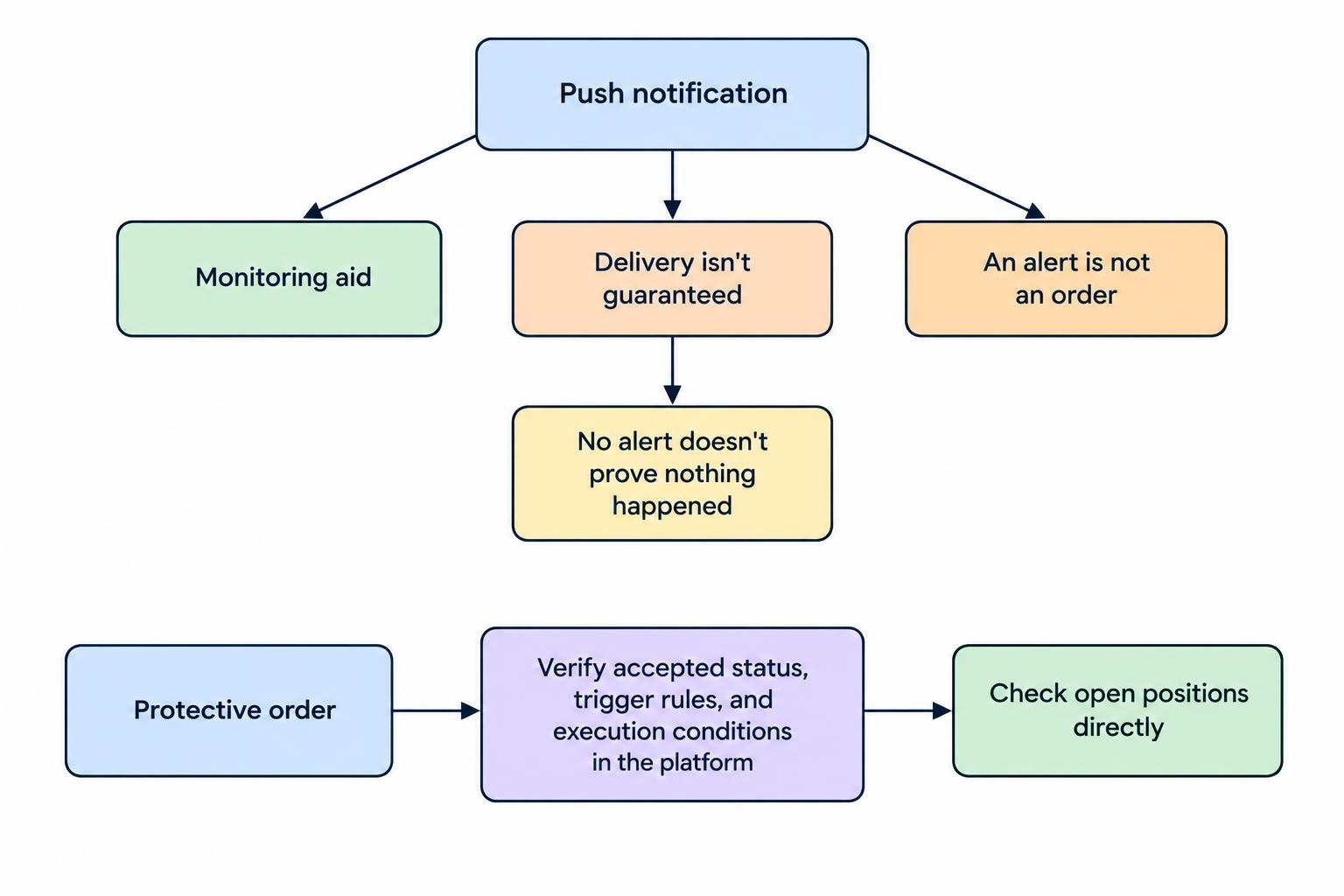
Treat a restored notification as a monitoring aid, not permission to stop checking the account. A successful test shows that one message arrived under those conditions; it does not establish guaranteed delivery for every future alert.
Before relying on any protective order, verify its accepted status, trigger rules and execution conditions directly in the platform. Do not assume that placing an alert creates an order, or that receiving no notification means nothing happened. Keep the alerting process separate from the decisions covered in mobile trading risk management.
The best fix is the smallest change that survives repeat testing: correct notification permissions, appropriate background access, and a clear record of what still fails. If alerts remain unreliable, change how you monitor positions rather than trusting a notification that may arrive after the decision has already passed.