Trading alerts on iPhone need two sets of controls: the alert rules inside your trading app and the notification settings in iOS. Focus adds another layer, deciding which interruptions you receive while working, trading or sleeping. Configure these together rather than treating each setting as a separate job.
The aim is not to make every market update louder. It is to keep useful alerts visible, remove promotional noise and know what to check when an expected notification does not appear. An alert should prompt a review, not become an instruction to trade.
Decide Which Trading Alerts Deserve Your Attention
Start inside the trading app. Review its notification categories before changing iPhone settings. Keep the alerts that serve a clear purpose and disable those that do not. Available categories vary, so check what your app actually offers rather than assuming every platform has the same controls.
A useful distinction is between account events, planned trading alerts and general information. An order rejection deserves a different response from a stock appearing on a “most traded” list. Your phone does not need to buzz every time the marketing department has a productive morning.
| Alert category | Examples, where supported | Suggested treatment |
|---|---|---|
| Account security | New login, password change, withdrawal request | Keep enabled and investigate unexpected activity |
| Orders and account risk | Execution, rejection, cancellation, margin warning | Prioritize for accounts you actively manage |
| Planned market alerts | Price level reached, scheduled event reminder | Keep only when connected to a written plan |
| Research and commentary | News digests, analyst updates, watchlist summaries | Review at chosen times unless immediately relevant |
| Promotions and activity prompts | Offers, popular instruments, invitations to trade | Disable unless you have a clear reason to retain them |
If the app combines order updates and promotions under one notification permission, look for finer controls within the app. Avoid switching off the entire app simply to silence one irritating category.
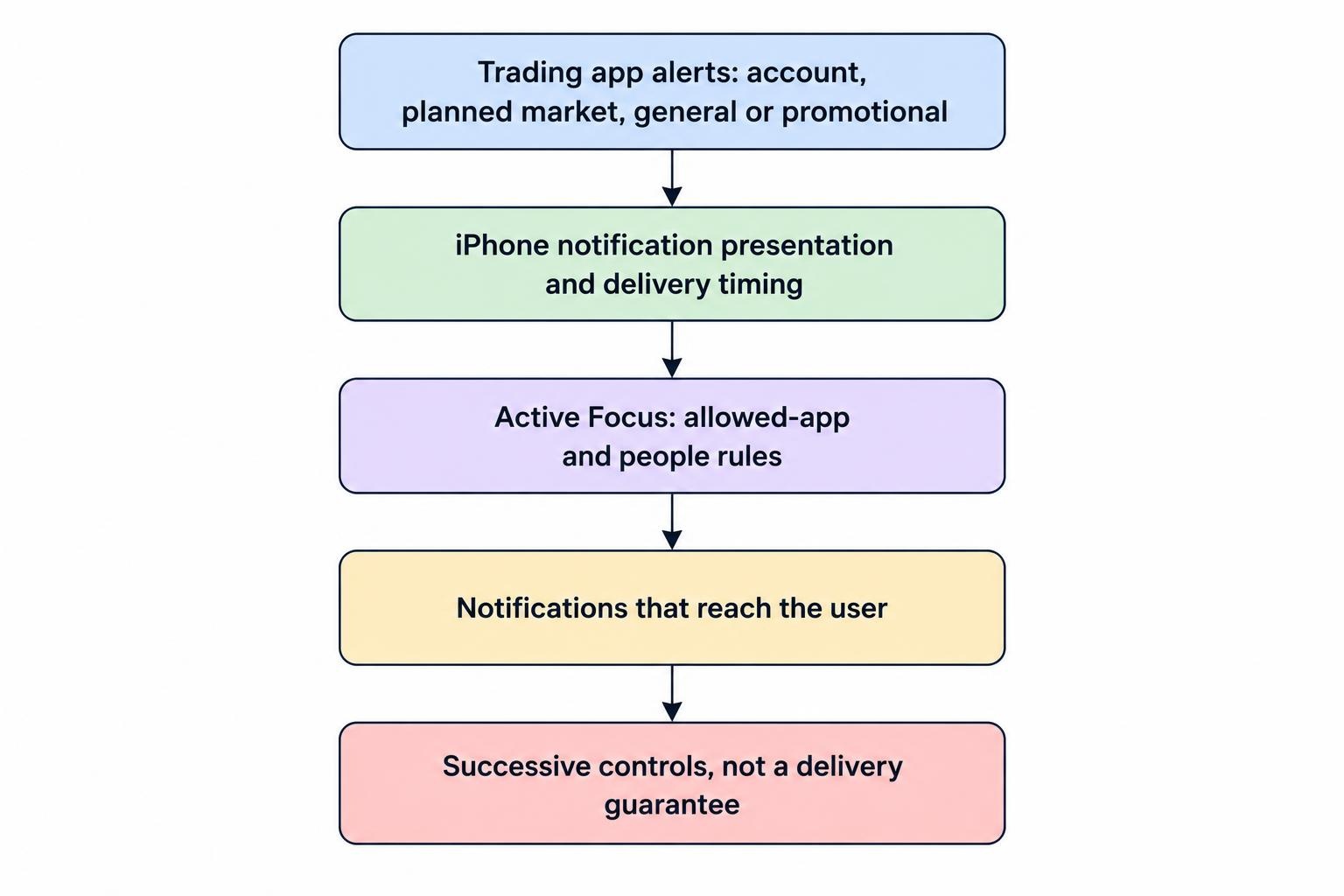
Configure iPhone Notifications Before Adding Focus
Open Settings > Notifications > your trading app. Enable Allow Notifications, then choose Lock Screen, Notification Center and banner presentation as appropriate. Review Sounds and Show Previews. If Scheduled Summary is enabled, keep apps carrying urgent account or order updates on immediate delivery rather than placing them in a scheduled digest. These controls are covered in Apple’s iPhone notification settings guide.
For an account you actively monitor, consider enabling banners and Notification Center. Treat sound as a deliberate choice: useful when the phone is nearby, less useful if every routine update makes the same noise. Test the result instead of assuming the switches guarantee an audible alert.
Balance Visibility With Privacy
Consider When Unlocked for notification previews if you want to restrict visible details on a locked phone. Then test whether the notification remains useful enough for your routine. Someone monitoring positions at a desk may prefer a different setup from someone carrying a phone through a shared workplace.
Review the wording your app displays. Would you be comfortable with a colleague seeing that message? Avoid exposing more account information than you need. Notification privacy is only one part of securing iPhone trading apps with Face ID and passcodes; it does not replace account protection.
Keep Urgent Apps Out of Scheduled Digests
Use scheduled delivery for material you intend to read later, not information you expect to act on promptly. A daily research digest can wait. An unexpected account change should not deliberately sit in the same queue.
Where one app carries both types, first try disabling its nonessential categories. If that is not possible, prioritize immediate delivery for the app and reduce the volume another way. Convenience is not a good reason to delay account warnings.
Create a Dedicated Trading Focus
To create a custom profile, open Settings > Focus, tap the add button, choose Custom and name it “Trading.” Configure People and Apps, and use Add Schedule if you want activation at a set time, location or while using an app. You can also choose a linked Home Screen or Lock Screen. Review Share Across Devices before relying on the profile. Apple’s Focus setup instructions cover these options.
For a trading session, start with a short list of permitted apps: the platform you use, any separate charting or alert app, and essential communication tools. Add people whose calls you genuinely need to receive. The objective is fewer interruptions, not becoming unreachable.
Do not allow every finance app simply because it contains market information. A news feed, a portfolio tracker and an execution platform may serve different purposes. Give each one a job before giving it permission to interrupt.
Check Whether You Are Allowing or Silencing Apps
When configuring the Apps section, read the selected rule carefully. A list of apps you permit is not interchangeable with a list of apps you silence. Before saving, ask a plain question: “With this profile active, which apps should still reach me?”
Keep the first configuration simple enough to explain without opening Settings. If you cannot describe which notifications you expect, troubleshooting will be harder later. Add exceptions only after testing the basic arrangement.
Review Time Sensitive Options Separately
If your app or Focus settings offer a Time Sensitive Notifications option, do not treat that label as proof that every trading message will interrupt you. Test the alert types you actually use.
Keep the distinction clear: an event can be urgent for your account without its notification having the delivery behavior you expect. Do not build a monitoring plan around an untested label, and do not assume that a setting available for one app exists for another.
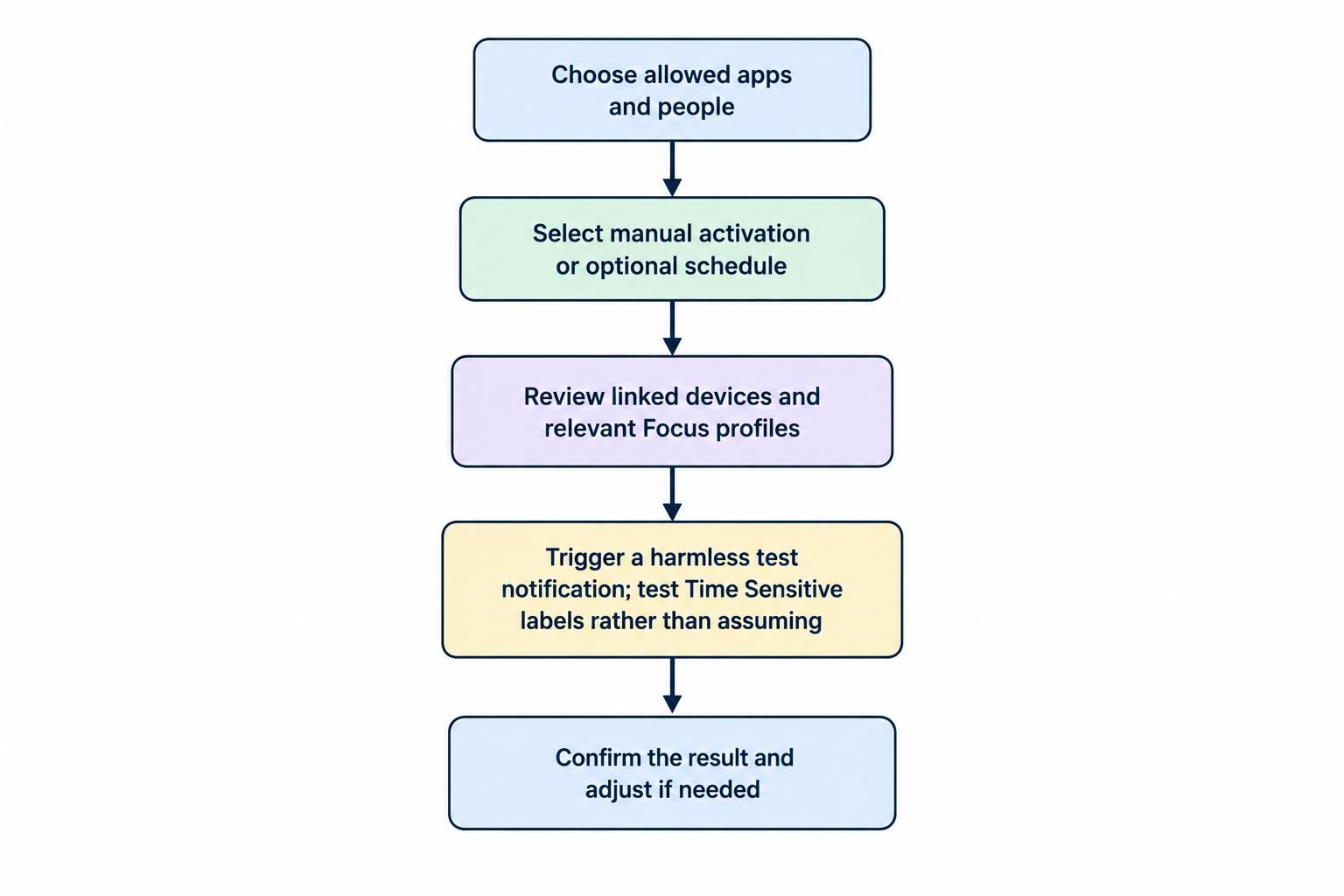
Match Focus to Your Trading Routine
A useful Trading Focus should match the period when you can review information and make decisions. It should not encourage you to monitor markets when you are meant to be doing something else.
Start with manual activation while testing. Once the profile behaves as intended, consider a schedule for your usual preparation and trading window. Check the schedule again when your routine, location or market hours change. A saved schedule is a convenience, not evidence that you are ready to trade.
Allow Time for Preparation and Review
Suppose you plan to monitor a session from 9:00 a.m. until 11:00 a.m. You might activate Trading Focus during preparation, check alerts and open orders, then leave time afterward to reconcile what happened. These are example routine times, not exchange trading hours.
Avoid a setup that ends your attention at exactly the moment your planned trading window closes. Before stepping away, check whether any positions or orders still need management. Build that check into your mobile day trading routine rather than relying on memory.
Inspect Other Focus Profiles Too
Test Work, Personal and Sleep separately if you use them. A successful test with Trading Focus does not tell you what happens under a different profile.
Before a meeting or bedtime, decide whether you still expect account notifications. If you retain positions, make an explicit monitoring plan. Do not solve the conflict by disabling every boundary around your day, but do not leave exposure unmanaged because the phone has gone quiet either.
Make Price Alerts Actionable
A useful price alert answers a question you already have. “Review this instrument near the planned level” is actionable. “Tell me whenever anything interesting happens” is an invitation to stare at a phone.
Keep a short note alongside each alert: why the level matters, what you will review and what would invalidate the idea. If the app supports alert names, use plain wording that will make sense several days later.
For example, an alert at $50 could mean “review the setup,” not “buy at $50.” The alert should lead you back to the live quote and your entry conditions. If the opportunity has passed, dismissing the notification is a valid response.
For alert placement, repeat triggers and review levels, use the separate guide to setting price alerts for mobile swing trading. Here, the priority is making those alerts reach the right place without burying account updates.
Reduce Duplicate and Obsolete Alerts
Avoid creating the same alert in several apps without a reason. If you choose a second channel as a backup, identify which channel is primary and what you will do when the messages disagree.
Remove alerts after the trading idea expires. Review recurring alerts that repeatedly interrupt you without changing a decision. More notifications do not necessarily mean better monitoring; they may just mean more clearing and swiping.
Test the Full Alert Path Without Placing a Trade
Use an app’s test notification, if available. Otherwise, consider a harmless price alert near the current market, provided creating it does not submit an order or commit funds. Do not place a live trade just to find out whether your phone makes a noise.
Run a small, controlled test:
- Establish a baseline. Trigger a test with Focus off and note where the notification appears.
- Activate Trading Focus. Repeat the test and confirm the intended app is still permitted.
- Lock the phone. Check visibility, preview privacy and the alert behavior you expect.
- Test your normal arrangement. Include any paired Apple Watch or headphones you normally use.
- Repeat under another Focus. Check Work or Sleep if those profiles matter to your monitoring plan.
Record the trigger time and when you noticed the notification. This is a practical check, not a delivery guarantee. A successful test cannot establish that every future order message or account warning will behave identically.
Repeat the check after changing relevant settings, moving to another phone or making a major app update. Keep the test brief enough that you will actually do it.
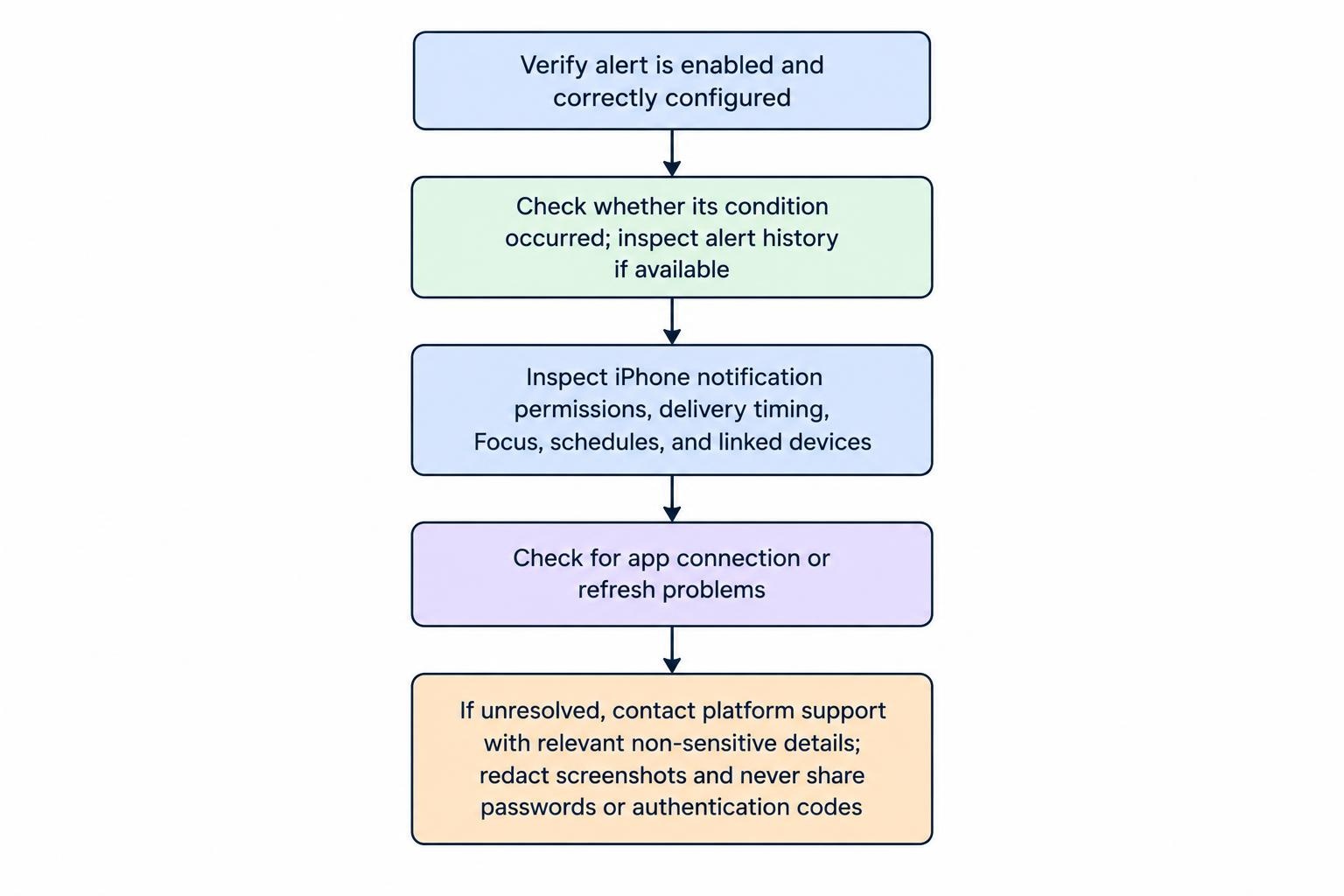
Troubleshoot Missing Trading Notifications in Order
Begin with the alert itself. Is it still enabled? Does it apply to the correct instrument and account? Did the condition occur under the app’s stated trigger rules? Check whether the app shows an alert history or event record before changing unrelated settings.
Next, inspect iPhone notification permission, delivery timing and the active Focus. Review automatic Focus schedules and any linked devices. If you use a watch, include it in the investigation rather than assuming the phone is the only place to check.
Distinguish a missing notification from a connection problem. If the app also fails to refresh quotes, load account information or show recent activity, follow the checks for trading app connection problems. Changing banner settings will not resolve a failed connection.
If the cause remains unclear, contact the platform’s support team with the alert type, instrument, approximate time and time zone, app version and iOS version. Redact screenshots and never send passwords or authentication codes.
Keep Notifications Separate From Risk Controls
Treat a trading notification as a prompt to inspect the account, not as the account record itself. Open the app directly and verify order status, position size and current prices before acting. Do not assume an order failed because its notification did not arrive, or repeat an order without checking.
Price alerts also serve a different purpose from orders. If your plan requires an exit order, verify that order in the platform rather than substituting a reminder to act later. Check the product’s order rules and risks before relying on it.
The practical standard is straightforward: retain useful account messages, permit the right apps during the right periods, test the arrangement and remove stale alerts. Your iPhone should help you follow a trading plan, not keep inventing reasons to open the app.