If your trading app disconnects with open positions, treat your exposure as live until the broker confirms otherwise. Stop sending repeat instructions, establish the status of any order already submitted, and use a verified alternative route to the account. Restoring the app matters, but knowing what you still hold matters more.
The awkward case is a connection failure immediately after tapping “Close.” Did the instruction fail to leave your phone, reach the broker, or execute without the confirmation reaching you? A frozen screen cannot answer that question.
Use the sequence below to regain control without turning one connection problem into several unwanted trades.
What to Do Immediately After the App Disconnects
Keep the first response short and deliberate. Do not spend several minutes changing settings while an unprotected position remains open.
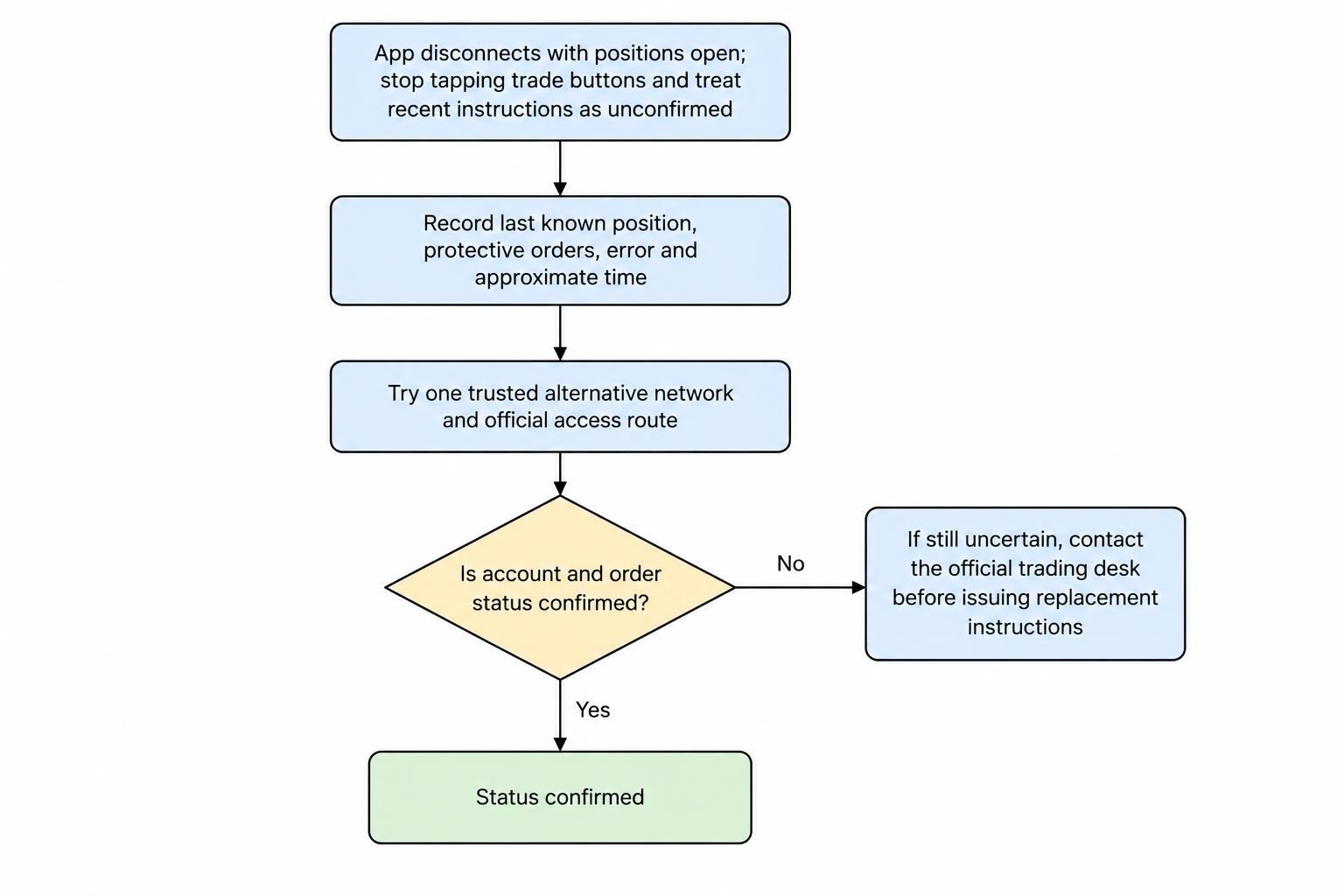
- Stop tapping trade buttons. Treat any recently submitted close, cancellation or stop amendment as unconfirmed.
- Record the last known state. Note the instrument, position size, protective orders, error message and approximate disconnection time.
- Try one alternative connection. Switch between trusted Wi-Fi and mobile data, then check whether account information refreshes.
- Use another official access route. Try the broker’s bookmarked web platform or an already configured desktop platform.
- Contact the trading desk if access remains uncertain. Ask for the current position and order status before giving replacement instructions.
Take a screenshot if it is quick, but do not delay an urgent call to assemble a perfect evidence file. Keep the phone available for authentication and support.
Save lengthy troubleshooting for after exposure is under control. The broader guide to trading app connection problems covers the diagnostic work; during an open-position incident, the priority is account access and confirmed instructions.
Separate a Frozen Display from an Unconfirmed Trade
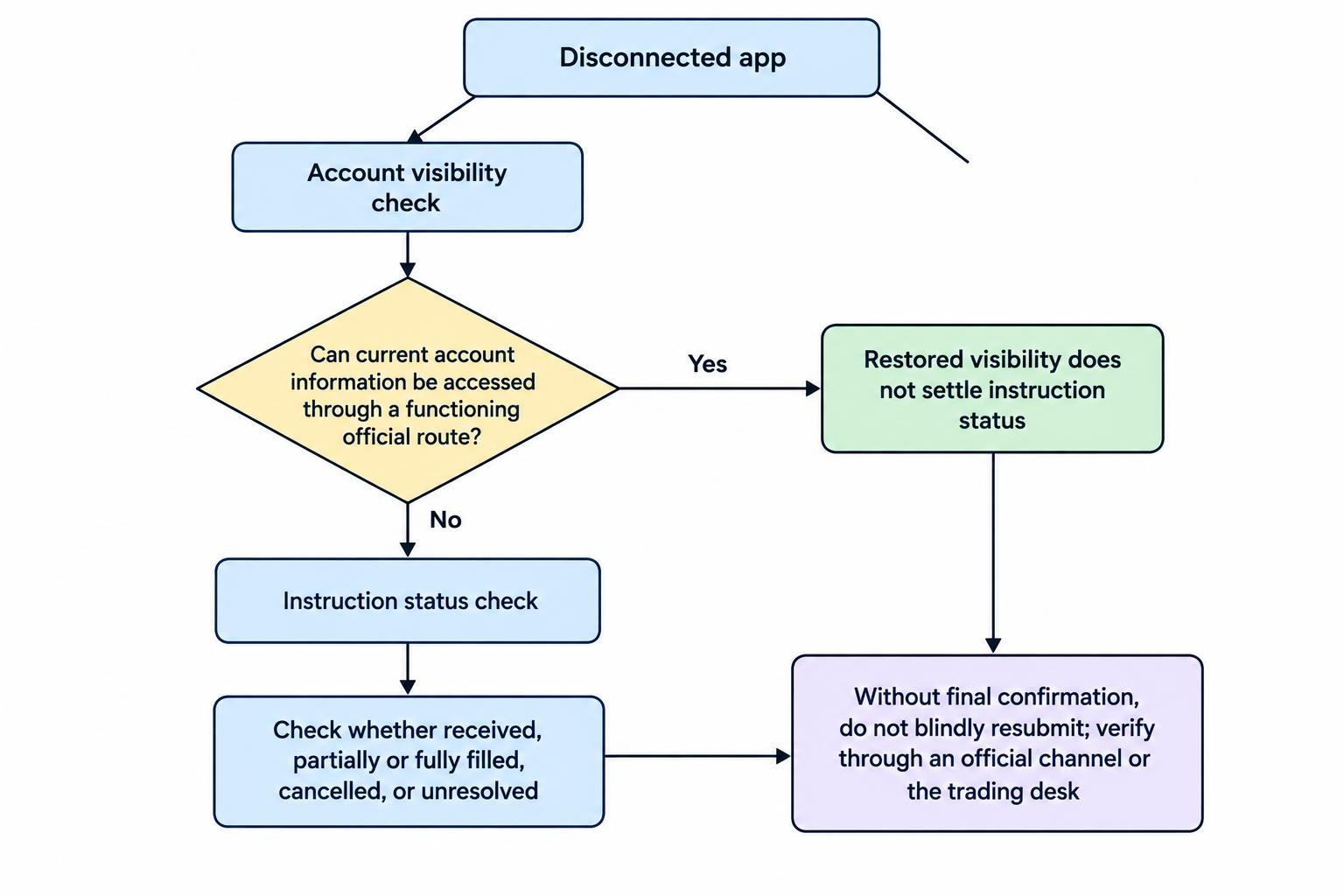
Write down two separate questions: “Can I see current account information?” and “What happened to my last instruction?” Fixing the first does not automatically settle the second.
A chart moving again is not enough. Check the account identifier, position quantity, working orders and execution history. Ask the broker to resolve any disagreement between those records rather than choosing whichever screen looks most reassuring.
Never assume an order failed because its confirmation is missing. Resubmitting can produce duplicate purchases or sales. A cancellation request also needs confirmation; receiving an acknowledgement is not proof the original order was cancelled. The SEC’s online investing guidance addresses both risks.
If You Had Just Tapped “Close”
Find the original order reference, if one was issued. Check its status through a functioning official channel before pressing “Close” again. If the records are unavailable, tell the trading desk that a close instruction may already be outstanding.
Use precise language: “I submitted a close request just before losing connection. Please confirm whether it was received, whether anything filled, and what quantity remains.” That gives the representative a defined problem to investigate.
Restore Access Without Starting a Second Incident
Make one controlled attempt to change networks. If you were using Wi-Fi, try mobile data; if cellular coverage is poor, try a trusted Wi-Fi connection. Reopen the app once if needed, then check account records rather than immediately sending another trade.
If that does not work, move to the backup route. Avoid a cycle of restarting, refreshing and resubmitting. Set a short escalation window in your trading plan, with faster escalation for exposure that needs immediate attention.
| What you observe | Next check | Do not assume |
|---|---|---|
| The app fails but other services load | Try the official web or desktop platform | That the problem affects only the app |
| Nothing connects on the phone | Try another network or trusted device | That the broker has stopped processing orders |
| Charts update but orders do not | Check execution history and contact the trading desk | That live quotes prove order entry works |
| A submitted instruction has no final status | Request confirmation against its order reference | That it is safe to submit it again |
Do not uninstall the app, clear its storage or begin a password reset as your first response. Leave those steps until you have another working route or the broker has confirmed the account’s position. Avoid turning an access problem into an authentication problem.
Use saved bookmarks and contact details from account documents. Do not follow unsolicited “outage support” links, install remote-access software at a stranger’s request, or disclose passwords and authentication codes.
Check Which Protective Orders Are Actually Working
Ask the broker to confirm the protective orders attached to each remaining position. Check their status, quantity, trigger level, expiry and applicable trading session. Distinguish an accepted order from a stop level entered into a ticket that never received confirmation.
Also establish where the protective logic runs. A broker-held order and a rule running inside a local terminal are not the same arrangement. Do not infer the answer from a label such as “trailing stop.”
In MetaTrader 5, the built-in desktop trailing stop runs in the terminal rather than on the server. When that terminal is off, it stops adjusting the stop level; the last Stop Loss already placed remains the relevant protection. The MetaTrader 5 documentation on stop and trailing-stop operation makes this distinction. Disconnecting your phone is a separate issue if the trailing logic runs on another machine.
For any other platform, check its documented behaviour rather than borrowing assumptions from MetaTrader. Ask whether the protection depends on your device, another running terminal, a hosted service or the broker’s systems.
A Working Stop Is Not a Guaranteed Exit Price
For stocks, an ordinary stop order becomes a market order when triggered, so execution can occur away from the stop price. A stop limit order controls the acceptable execution price but may remain unfilled. These risks are set out in FINRA’s guidance on stop orders during volatile markets.
Do not replace a stop with a stop limit during an outage simply because the latter sounds safer. Decide whether your priority is controlling price or obtaining an exit, and check the product’s rules. The guide to mobile trading order types covers those choices in more detail.
Contact the Trading Desk with a Clear Request
If you cannot verify exposure through a working platform, contact the broker’s official trading or dealing desk. Ask customer support to route you there if necessary. Establish whether that channel can accept orders for your account and product, rather than assuming a chat agent can close positions.
Have the account identifier, instrument, direction, last known quantity and outstanding order references ready. Complete the broker’s normal identity checks, but never give a representative your password or one-time authentication code.
A useful request is:
“My app disconnected while I had an open position in [instrument]. I submitted [instruction] at approximately [time and time zone], but have no final confirmation. Please confirm the current position, any fills, and all working orders before we place another instruction.”
Once the position is established, state the action you want without ambiguity. Specify the instrument, account, quantity and order terms. Ask for those details to be read back, along with any applicable telephone dealing fee.
Finish by requesting the order reference and final status. “Request received” and “position closed” are different answers. If the desk cannot confirm execution yet, establish how you will receive the result and who is handling follow-up.
Verify Fills, Remaining Quantity and Leftover Orders
After an exit instruction, reconcile the executed quantity with the remaining position. A stock order can fill partially or not at all, and a trading pause or halt can prevent execution. FINRA’s explanation of the online stock trade lifecycle separates order submission, execution and confirmation.
Consider a hypothetical holding of 100 shares. If a confirmed execution shows that only 60 sold, investigate both the remaining 40 shares and the unfilled portion of the original order. Do not place another 100-share sale. Ask whether the remainder is still working before submitting anything else.
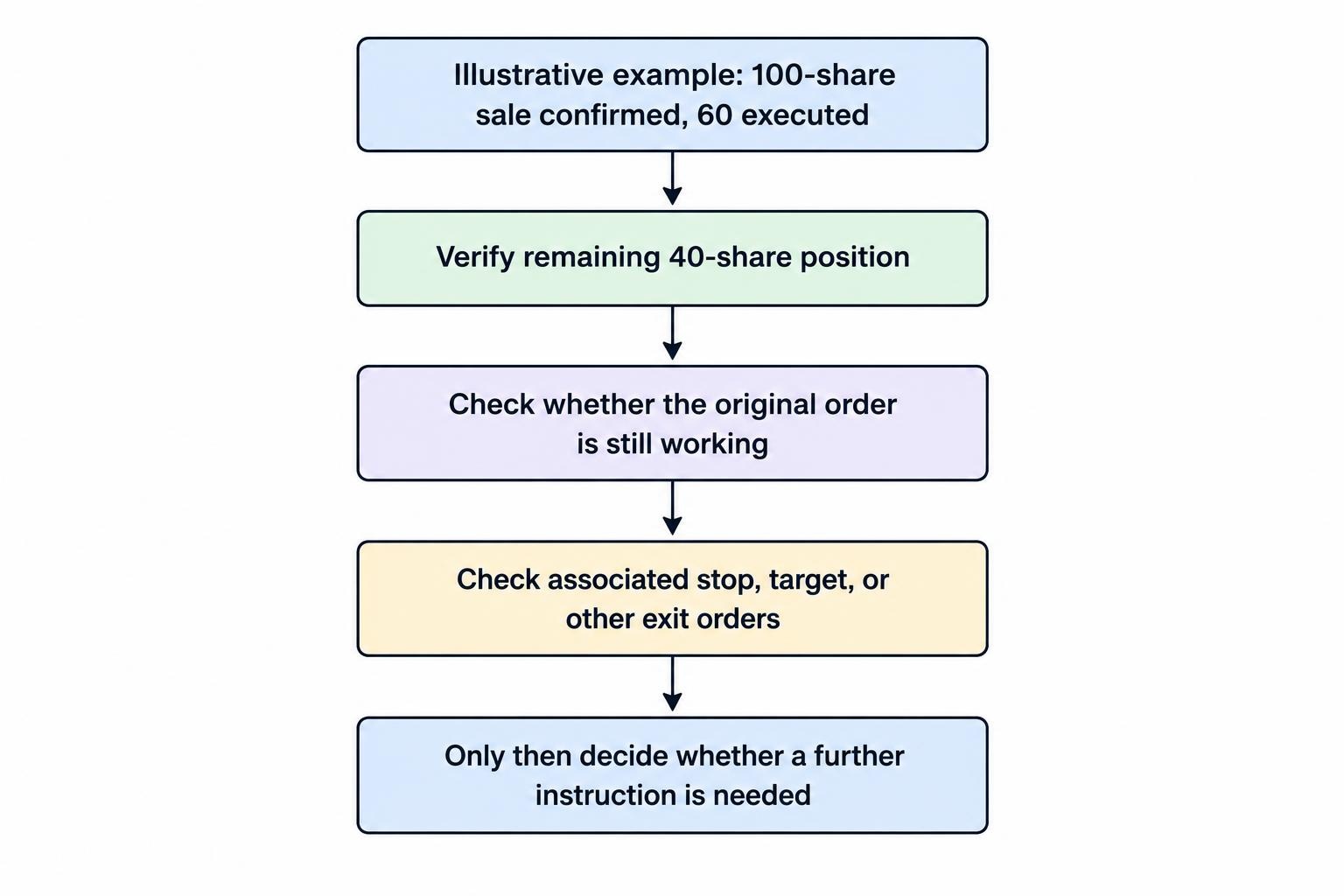
After the position reaches zero, inspect the working-order list. Confirm whether associated stops, profit targets and other exit instructions were cancelled or remain active. Do not assume every platform handles linked orders in the same way.
Avoid opening an opposite position as a blind workaround. Use the platform’s documented close procedure or ask the trading desk to handle the intended reduction. Make the objective explicit: reduce or remove existing exposure, not establish another trade.
Give Margin Exposure Immediate Attention
If borrowing is involved, ask for current equity, maintenance requirements and any liquidation activity. Do not rely on the last margin figure displayed before disconnection.
For US securities margin accounts, a broker can sell securities to cover a shortfall without advance notice, including before a previously stated deadline. The SEC’s margin-call guidance describes that risk. Losing access to the app should not be treated as a grace period.
For futures, forex, CFDs or other margined products, ask for the rules applicable to that account rather than applying stock-account assumptions. Request confirmation of the actual exposure and available actions.
Do not use a rushed deposit as a substitute for checking the position. Before choosing that response, establish when the funds would become usable and whether the broker has already taken action. Keep the decision tied to your existing mobile trading risk-management plan, not the hope that restoring connectivity will also restore the price.
Keep an Incident Record Once Exposure Is Controlled
Build a short timeline while the details are fresh. Include the time zone, error messages, attempted instructions, network changes, order references and support contacts. Preserve screenshots and export available execution records.
Separate observations from assumptions. “The app showed a connection error at 10:14” is an observation. “The broker rejected my order at 10:14” needs an order record or confirmation. That distinction makes a technical review or complaint easier to assess.
If you dispute an execution or the handling of the outage, send a written account through the firm’s formal complaints channel. State what happened, identify the disputed orders and explain what review you want. Ask for the relevant timestamps and order-status history. Do not assume a screenshot alone establishes the cause of a loss or entitlement to reimbursement.
Prepare a Backup Before the Next Trade
Once the incident is resolved, test the backup access route without placing a live trade. Confirm that you can log in, complete authentication and locate positions, orders and history. Save official dealing-desk details somewhere accessible without the trading app.
Write a brief outage procedure covering four points: where to check exposure, how to verify an uncertain instruction, which protective functions require a running terminal, and when to escalate by telephone. Include the broker’s service hours and any restrictions on telephone orders.
Review whether the position depended on uninterrupted screen access. If a short disconnection made the trade unmanageable, change the operating plan before repeating it: reduce exposure, arrange suitable protection or trade only when a tested backup is available.
The final check is straightforward: confirm what remains open, confirm what orders are working, and confirm the result of every instruction. A functioning app is useful. A reconciled account is the actual finish line.