Two-factor authentication protects a trading account with more than a password. Account recovery provides a controlled way back in when a phone goes missing, an authenticator stops working or a security key is lost. Both need attention before there is a problem, not while an open position is moving against you.
A practical setup should answer three questions: how do you sign in, what happens if your main method fails, and how do you stop someone else using the recovery process? Choose the strongest authentication your broker supports, then prepare a backup that does not depend entirely on the same phone.
This guide focuses on authentication and restoring access. For device locks, software updates and other safeguards around the trading app itself, use the broader mobile trading app security guide.
What Two-Factor Authentication Protects
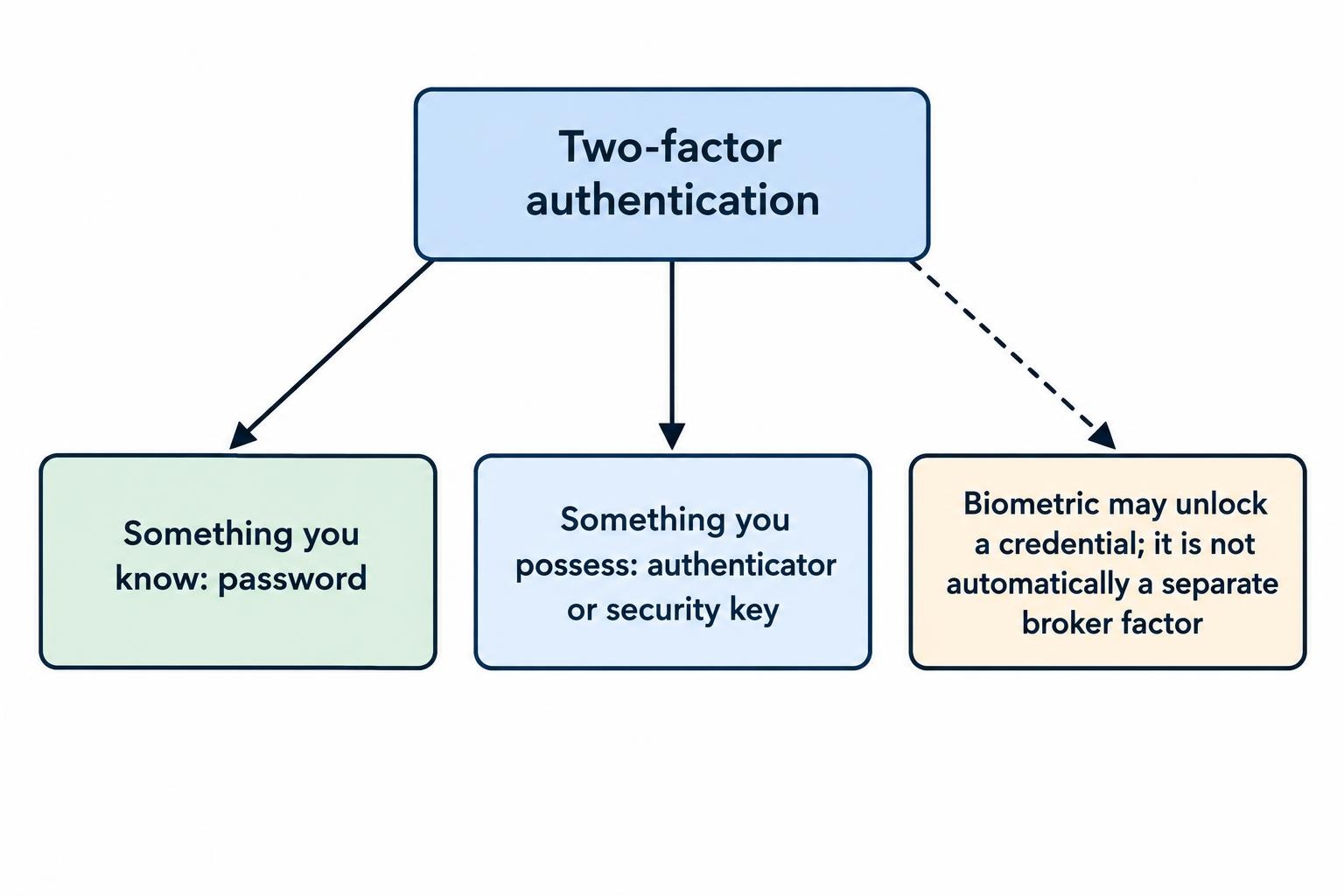
Two-factor authentication, often called 2FA, combines two different types of proof. A password is something you know. An authenticator or security key is something you possess. A fingerprint or facial check can help activate an authenticator. Entering a password followed by another memorised PIN does not automatically create two different factors.
Multi-factor authentication, or MFA, is the wider term for using two or more factors. In trading apps, the labels “2FA”, “two-step verification” and “MFA” may appear in similar settings menus, but check the actual method rather than relying on its name.
Prefer phishing-resistant authentication where available. Otherwise, use a supported authenticator method rather than leaving the account protected by a password alone. CISA’s comparison of MFA methods distinguishes physical security keys, authenticator prompts, generated codes and text messages.
Before enabling anything, check which actions require verification. Ask whether protection covers browser access as well as the mobile app, and whether changing contact details, adding a withdrawal destination or replacing the authenticator requires another check. Do not assume a login setting protects every account action.
Choosing an Authentication Method
Availability depends on the broker, account and device. Use the table below to compare the recovery planning each option needs, rather than choosing solely by how quickly it gets you past the login screen.
| Method | How it works | What to prepare |
|---|---|---|
| Passkey | Uses a cryptographic credential, usually activated with a device unlock. | Confirm whether it syncs or stays on one device, and how replacement works. |
| FIDO security key | Uses a compatible physical key to authenticate. | Register a spare if supported and store it separately. |
| Authenticator code | Generates a changing code that you enter during sign-in. | Check transfer or backup arrangements before replacing your phone. |
| Approval prompt | Asks you to approve a sign-in, sometimes by matching a number. | Confirm how to regain access without the registered device. |
| SMS code | Sends a verification code to your registered number. | Protect the mobile carrier account and keep the number current. |
Passkeys and compatible FIDO authentication can resist phishing because authentication is bound to the legitimate service. Manually entered one-time codes do not provide that protection: a convincing fake login page can ask for the code too. A biometric check is not automatically a separate broker authentication method; it may simply unlock a credential or an existing app session. These distinctions appear in NIST’s authentication requirements.
Check What the Fingerprint or Face Scan Actually Does
Ask whether the biometric setting unlocks the app locally, activates a passkey or authorises a broker account action. Those are different jobs. Also check what happens when biometrics fail: which passcode or password becomes the fallback?
Do not disable account-level verification because the app already asks for your face. Review both settings separately. Convenience is useful, but a fast unlock screen is not a complete recovery plan.
Understand the Weakness of SMS
A SIM swap can transfer control of your phone number to an attacker, allowing them to receive verification texts. A mobile carrier account PIN can help protect against unauthorised changes, but it is not the same as the PIN that locks a SIM card. The FTC’s SIM swap guidance recommends considering an authenticator app or security key for sensitive accounts.
If SMS is the only option, use it rather than turning verification off. Ask the carrier about available number transfer protections, and ask the broker whether another authentication method is supported. Avoid changing your phone number and primary sign-in method in the same session unless necessary.
Set Up 2FA Without Losing Access
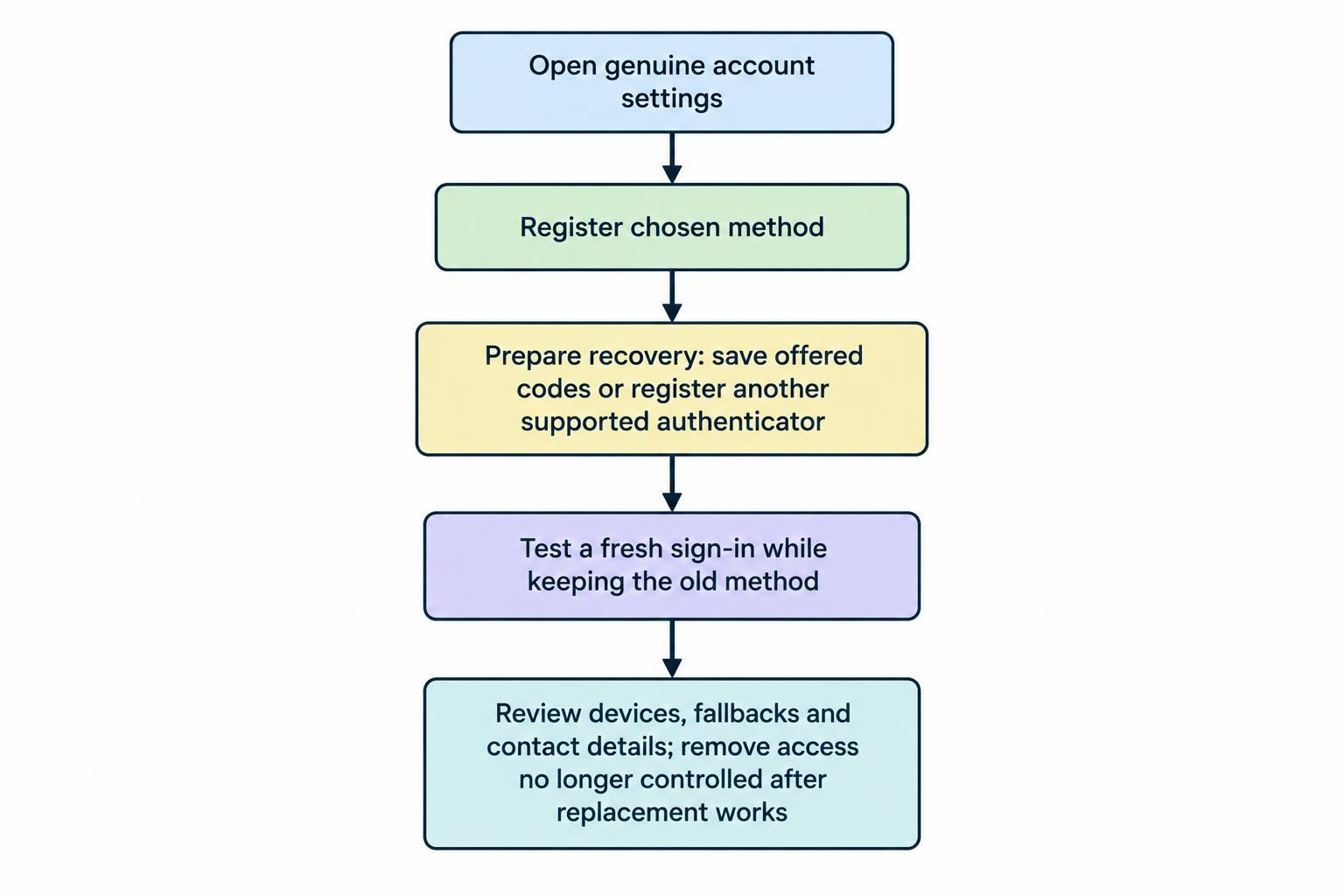
Make security changes during a quiet period, preferably without a time-sensitive trade to manage. Keep the existing device available until the replacement method has passed a fresh login test.
- Open the genuine account settings. Start from your installed app or a saved broker address, not a security warning sent by text.
- Register the chosen method. Follow the broker’s own setup process. Treat authenticator setup QR codes and secret keys as confidential.
- Prepare recovery. Save the offered recovery codes or register an additional supported authenticator before ending the setup session.
- Test a fresh sign-in. Confirm that the new method works without deleting the old one prematurely.
- Review the finished setup. Check registered devices, fallback methods and contact details. Remove anything you no longer control once the replacement works.
For a spare security key, use a clear label such as “home spare” rather than a vague device name. For an authenticator, label the entry with the broker and account identifier you recognise, without exposing unnecessary account details.
Keep the backup somewhere other than your daily phone bag. Two registered keys carried on the same keyring solve a broken-key problem, but not a lost-keyring problem.
Build a Recovery Route That Survives a Lost Phone
A useful recovery plan should still work when the phone is missing, powered off or erased. Start by mapping dependencies: does the broker reset go to email, does email recovery require the phone, and are the recovery codes stored only inside that phone?
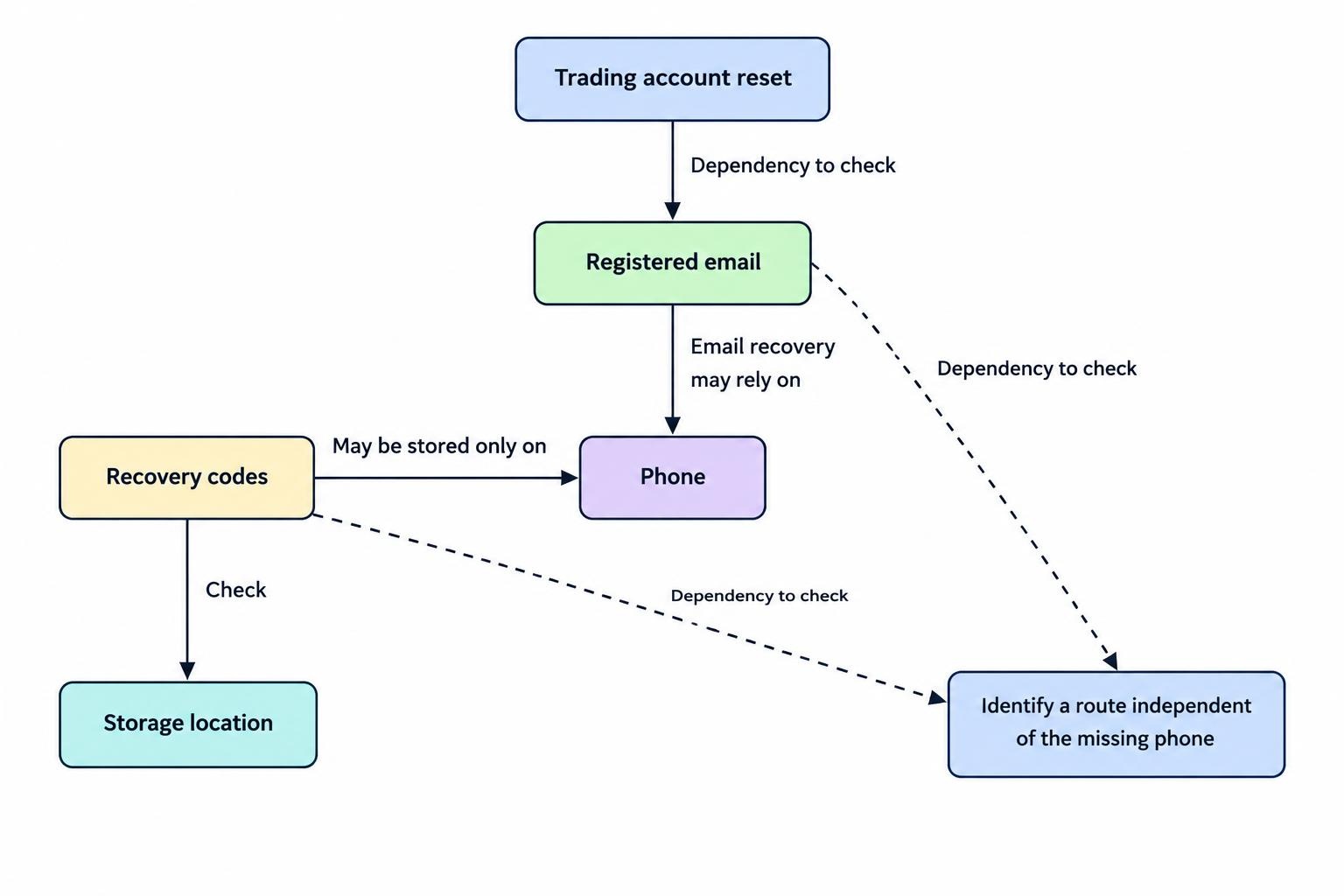
Saved recovery codes are sensitive credentials, not ordinary notes. NIST treats account recovery as a separate process that can involve saved codes, recovery contacts or renewed identity checks, and may take longer than normal sign-in. Its guidance calls for secure offline storage of saved recovery codes and invalidation after use. These are NIST’s account recovery principles, not a guarantee of any broker’s procedure.
Consider a sealed paper copy in secure storage, or an encrypted copy you can access independently of the missing phone. Avoid leaving the only copy in an ordinary photo album, email draft or unprotected note.
If using a password manager, check that you can unlock and recover the manager without the trading phone. Storing the broker password, authenticator and recovery codes together may be convenient, but assess what happens if that single store is compromised or inaccessible.
Protect the Recovery Email Account
Treat the registered email account as part of the trading account’s security boundary. Give it a different password and enable its strongest supported authentication. Review its recovery details before depending on it for a broker reset.
Try a simple planning exercise: with the trading phone switched off, identify how you would access email, obtain recovery information and contact the broker. You do not need to trigger a real reset. The aim is to find circular dependencies before they become an expensive surprise.
Moving an Authenticator to a New Phone
Do not assume that restoring the trading app also restores its authentication credentials. Before wiping or trading in the old phone, check the authenticator’s transfer instructions and the broker’s replacement procedure.
While the old phone still works, confirm that the new device can complete a fresh broker login. Then check whether the old credential needs to be revoked in account settings. Deleting an app from a phone is not a substitute for reviewing the credentials registered with the broker.
If the transfer requires a QR code or export file, handle it as sensitive account material. Do not send it through an ordinary chat just to make the move easier. If the process is unclear, stop and use verified support rather than improvising.
If a recovery page asks you to install an unfamiliar trading app, pause before proceeding. Check the publisher and download route using the guide to recognising fake trading apps.
What to Do When You Cannot Sign In
The Authenticator Code Is Rejected
Check that you selected the correct broker entry, particularly if you have several accounts. For a time-based authenticator, check the phone’s automatic date and time setting, then try a fresh code before it expires.
Avoid repeated guesses. Read the error message and follow any stated waiting period. If the entry was deleted or the phone was reset, use the documented recovery route rather than creating a new authenticator entry and expecting it to match the existing account.
The Phone or Security Key Is Lost
Use a registered spare or the broker’s recovery process from a trusted device. If theft or unauthorised access is possible, tell the broker that explicitly. Ask what restrictions and session revocation options are available while access is restored.
Never give a login code, recovery code or authenticator setup secret to an unsolicited caller. Someone claiming to “cancel a fraudulent login” may be trying to complete one. The FTC’s verification-code scam warning recommends contacting the financial firm through a number you already trust.
No Backup Method Works
Contact support using details from an account statement or the broker address you have independently verified. Explain which factor is unavailable and whether you still control the registered email and phone number.
Ask for the required identity verification steps, a case reference and information about any temporary restrictions. Submit documents only through the verified process. Do not pay an unknown “recovery specialist” to bypass authentication, and do not create another account to work around the lockout unless the broker instructs you to do so.
Handle Open Positions Separately From Account Recovery
If positions remain open, tell support immediately and ask whether an authorised alternative channel can accept instructions. Do not assume a recovery request cancels pending orders, closes positions or stops market exposure.
Keep authentication recovery and trading instructions separate. Record what you requested, when you requested it and what the broker confirmed. The operational steps belong in the guide to losing trading app access with open positions.
Before relying on mobile access for active trading, save the broker’s verified contact details somewhere accessible without the phone. Ask in advance what telephone dealing or emergency procedures exist, including their hours and any charges. A contact number is useful only if it reaches the right service.
Check the Account After Access Returns
Restoring login access is not the end of an incident. Review transactions, contact details and linked financial accounts. Enable available alerts for logins, security changes, trading and transfers, then report unexplained activity promptly in writing. The SEC’s bulletin on protecting online investment accounts covers these checks and the value of keeping written records.
Review registered authenticators and active sessions too. If the incident involved compromise, replace affected credentials and remove access you do not recognise. Generate replacement recovery codes where the service offers them, then update the securely stored copy.
Repeat the recovery review after changing a phone, number, email address or password manager. The goal is straightforward: make unauthorised access difficult without making legitimate recovery depend on one device that can disappear between the train seat and the platform.