A trading app that keeps reconnecting needs a methodical check, not repeated taps on the order button. Start by establishing whether the problem affects your phone’s internet connection, the app itself, or the trading provider’s service. Change one thing at a time, then check the result.
The first priority is any instruction you have already submitted. Restoring a chart is useful; establishing whether an order reached the broker matters more. Once that is settled, work through the checks below, starting with the least disruptive.
Check Pending Orders Before Troubleshooting
If the app disconnected immediately after you submitted, amended or cancelled an order, treat its status as unconfirmed. Do not submit the same instruction again just because the confirmation screen failed to appear. Duplicate orders and unconfirmed cancellations are recognised risks in the SEC’s guidance on online order execution.
Use an already established alternative access route, such as the provider’s official browser platform, to check order history and current positions. If you cannot establish the status, contact the provider through a previously verified support channel. State that you need confirmation of an existing instruction, rather than simply reporting that the app is slow.
Record the time, instrument, direction, quantity and any order reference before restarting anything. Keep a screenshot of the error if doing so does not delay a more urgent account check.
If you have live exposure and cannot access the account, follow the separate procedure for handling a trading app disconnection with open positions. That situation calls for an account access plan before routine device maintenance.
Identify Which Part of the Connection Is Failing
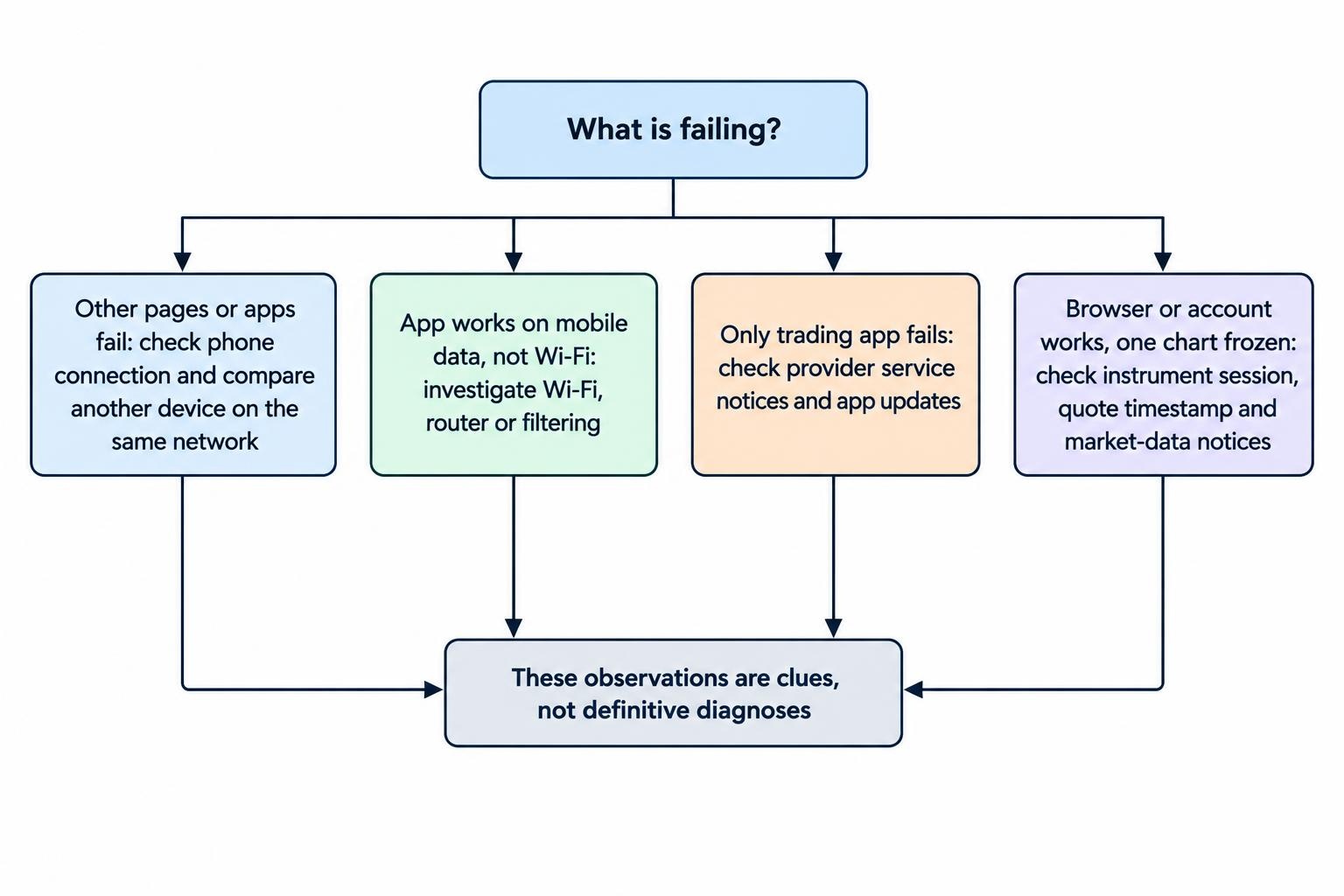
Use a small set of comparisons to narrow the problem. Can your phone load a newly opened webpage? Does another device work on the same network? Does the trading provider’s browser platform load? Does the app behave differently on mobile data?
These checks provide clues, not a definitive diagnosis. A working browser does not establish that every trading function is available. Likewise, an app error on two devices should prompt a service check before you start changing both phones.
| What you observe | What to investigate next |
|---|---|
| New webpages and other online apps also fail | Check the phone’s connection, then compare another device on the same network. |
| The trading app works on mobile data but not Wi-Fi | Investigate that Wi-Fi network, its router and any network filtering. |
| Only the trading app fails | Check its service notices, restart the app and look for an official update. |
| Account access works, but one chart is frozen | Check that instrument’s session, quote timestamp and market data notices. |
| The problem appears after locking the phone | Compare foreground behaviour with background behaviour before changing settings. |
| An order remains marked “sending” or “pending” | Confirm its status through the provider before submitting another instruction. |
Write down the result of each comparison. “Works on cellular, fails on home Wi-Fi” is much more useful than “the app keeps breaking.” It also saves you from repeating the same unsuccessful test later.
Test Wi-Fi and Mobile Data Separately
Provided no order status needs urgent attention, turn Wi-Fi off and test the app over mobile data. Then test Wi-Fi separately. Switching between the two connections is part of Google’s Android internet troubleshooting procedure, alongside restarting the device and checking mobile coverage.
For each test, open a fresh webpage, reopen the trading app and check whether account information refreshes. Do not place a live trade to test connectivity. The aim is to compare access, not create a second problem.
If mobile data works, concentrate on the Wi-Fi connection. Try moving closer to the router and checking whether another device can load new pages. If cellular access also fails, check coverage and whether your mobile service has usable data available before blaming the app.
A brief airplane mode cycle is another option once any urgent account check is complete. It deliberately interrupts connectivity, so do not use it while waiting for an order acknowledgement or speaking to support through an internet call.
Separate a Weak Signal From a Wider Network Problem
Test from one stationary location rather than walking between rooms or continuing a train journey. Keep the network unchanged while you observe the result. Otherwise, you are changing the test conditions before learning anything useful.
At home, arrange a router restart only when it will not interrupt another route you need for account access. On a workplace, hotel or shared network, ask the administrator for help rather than changing settings you do not control. Your troubleshooting plan should not become everyone else’s outage.
Check the Provider’s Service Before Changing the Phone
Open the provider’s official service status page, if one exists, through a saved address or its verified support pages. Look for a notice that matches the affected function and the time your problem began. A notice about deposits does not explain a frozen order ticket.
Check whether maintenance is scheduled and whether the notice distinguishes login, pricing, order entry or another service. Save the relevant incident message with its timestamp for your records.
If the browser platform is available, compare it with the app without submitting new instructions. Record exactly what works: login, balances, positions, quotes or order history. Avoid reducing several separate observations to a single “online” or “offline” label.
Treat social media reports as prompts to investigate, not confirmation. Use the provider’s verified channels to establish the incident and its recovery status. Avoid installing a replacement app or following a new login link supplied by an unsolicited message.
Restart and Update the App Without Losing Access
If the fault appears confined to the app, close it fully and reopen it. If that does not help, restart the phone and check for an update in its official app store. On Android, restarting, updating, force stopping and clearing cached data are established steps in Google’s procedure for an app that is not working.
Make one change, then repeat the same access check. Updating the app, changing networks and clearing storage together may restore access, but it leaves you with little idea what fixed it.
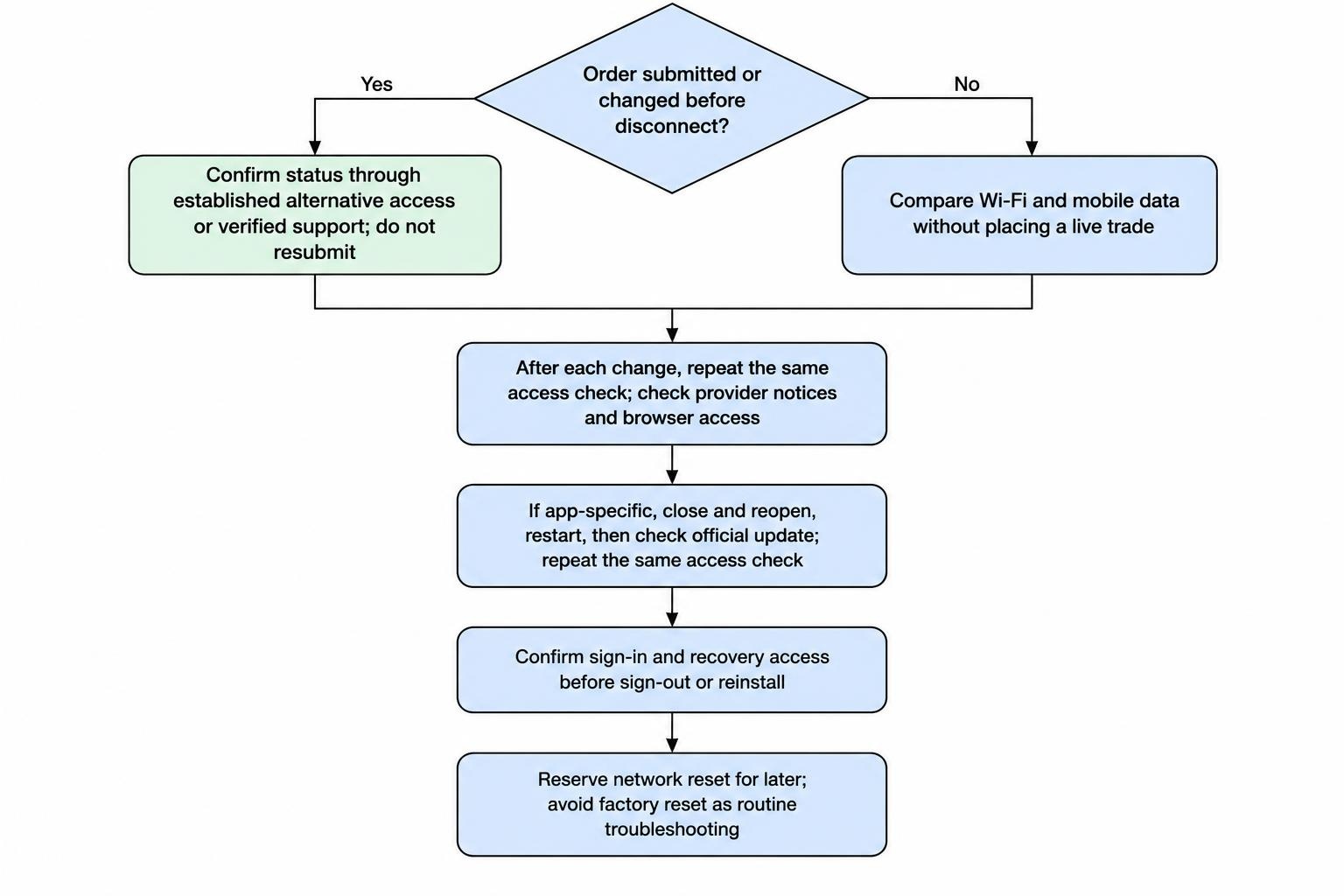
Before signing out or reinstalling, confirm that you have your password and can complete account authentication. Check your recovery arrangements too. A saved session is not a good substitute for knowing how to sign back in.
On Android, try clearing the app’s cache before considering its stored data. Treat clearing storage and reinstalling as later steps, not harmless refresh buttons. Uninstalling can erase locally saved app data, so preserve anything you need and check the provider’s instructions first.
Schedule operating system updates and larger maintenance work for a period when you do not need immediate trading access. Avoid turning an uncertain connection into a planned interruption at the wrong moment.
Investigate VPNs, Filters and Background Behaviour
If you use a VPN, firewall, parental control app or content filter, include it in the diagnosis. Such software can block network connections; Apple’s guidance on VPN and security software conflicts recommends checking these tools, device time settings and alternative networks.
On a trusted private connection, temporarily pause a relevant optional feature and repeat the access test. Restore it afterwards. If the result changes, ask the software provider how to correct the conflict rather than leaving protection disabled indefinitely.
Do not remove an employer’s management profile or required VPN without approval. Never bypass a certificate warning to make a trading login load. An error that disappears after weakening security still needs a proper fix.
Does the Problem Occur Only After the Screen Locks?
Compare two short tests: keep the app visible during one, then lock the phone and reopen it during the other. Note whether you see a fresh login request, a reconnecting message, an old timestamp or simply a late notification.
Give support that distinction before changing several battery and data controls. Ask which background settings the app requires on your device and software version. Follow those instructions narrowly rather than disabling restrictions across the whole phone.
If the app refreshes normally when opened but alerts arrive late, use the guide to fixing delayed trading notifications on Android. Keep alert delivery and active app access as separate troubleshooting questions.
Distinguish Frozen Quotes From Lost Account Access
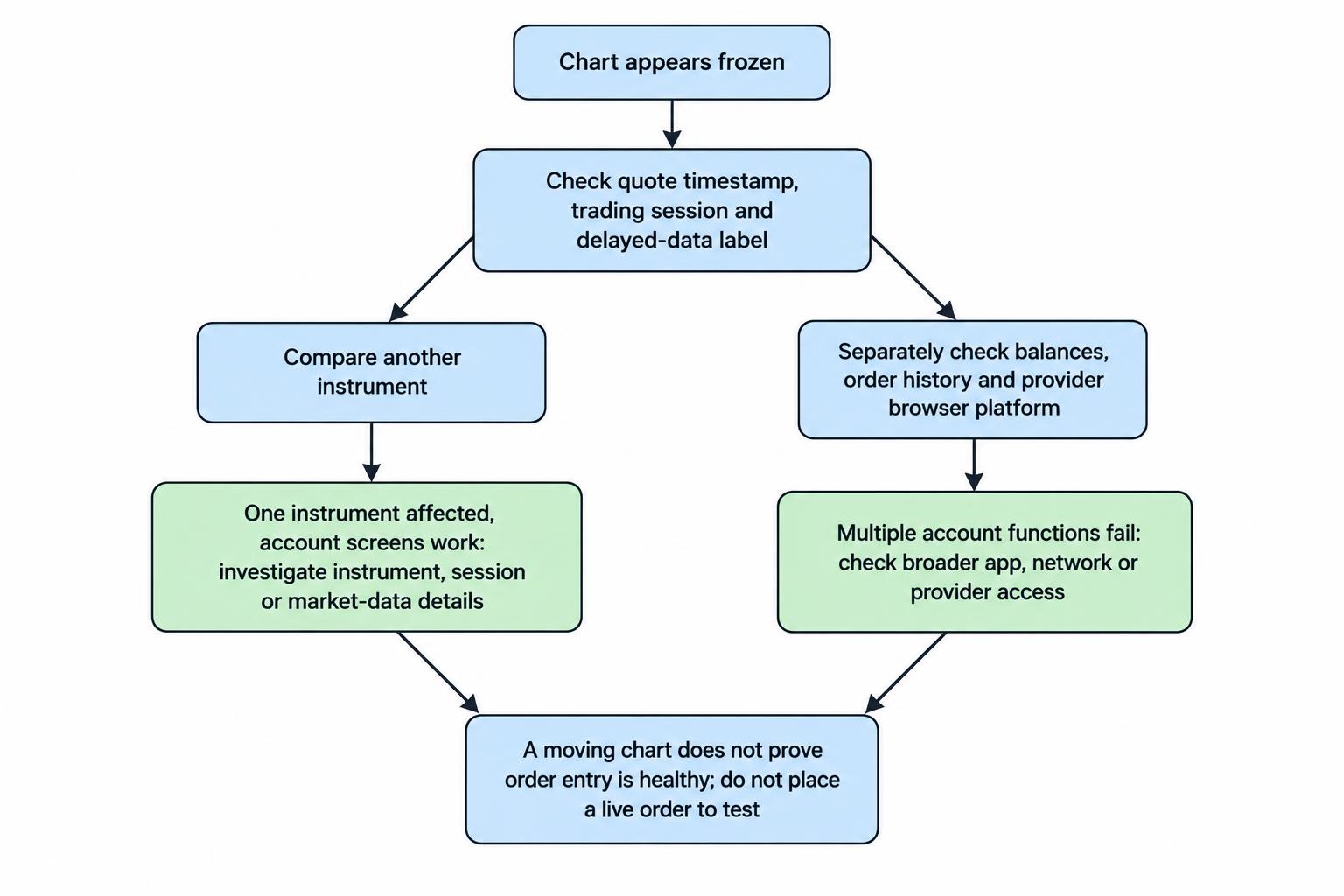
A motionless chart is a reason to investigate, not proof that the whole connection has failed. Check the quote timestamp, the instrument’s trading session and whether the display is labelled delayed. Then inspect another instrument and the account screens.
Ask precise questions. Can you refresh balances? Does order history open? Is one symbol affected or every symbol? Does the same instrument show the same timestamp on the provider’s browser platform?
Record those observations without assuming that a moving chart proves order entry is healthy. Do not submit a small live order as a diagnostic test. If pricing appears stale or the order screen behaves unpredictably, pause new trading and ask the provider to confirm which services are available.
For recurring incidents, record the instrument and session each time. A pattern tied to one market deserves a different support question from an app that cannot connect anywhere.
Leave Network Resets Until Later
A network reset is not the same as toggling Wi-Fi. On iPhone and iPad, it removes saved Wi-Fi networks and passwords and resets cellular, VPN and APN settings. The Apple Wi-Fi troubleshooting procedure places this step after other checks and advises consulting an administrator for managed networks.
Before proceeding, make sure you can restore the connection you use and have any required network details. Read the confirmation screen carefully; do not select an option that erases the phone.
Avoid a factory reset as routine trading app troubleshooting. Escalate with your test results first, particularly if other apps work normally or the trading app fails across more than one connection.
Send Support a Report They Can Act On
A useful report should let support distinguish an account problem from an app or network fault. Include the exact error text, when it started and the time zone. Add the phone model, operating system version, app version and whether the issue happens on Wi-Fi, cellular or both.
State which checks you completed and what changed. Include any relevant order reference through the provider’s secure support process, but never send your password, authentication code or recovery codes.
Use a concise description such as: “The app shows ‘connection timed out’ after login. It fails on home Wi-Fi and cellular. The browser platform loads, and restarting the phone made no difference. No new order was submitted.” Replace every detail with your actual observations.
Confirm Recovery Before Trading Again
After access returns, review positions, pending orders and transaction history before entering anything new. Resolve any uncertainty left by the interruption, then check that account screens and quote timestamps refresh consistently.
Keep a short incident record with the symptoms, tests and successful fix. If failures recur, compare them with your device and app requirements using the broader mobile trading apps and devices guide.
The useful endpoint is not simply that the error disappeared. It is that account access is stable, existing instructions are accounted for and you know which backup route to use if the connection fails again.